
Vehicle entry and exit (cashier role - daily reservations)
From the cashier role, you can register the entry and exit of vehicles with daily reservations. These movements update occupancy, arrivals, departures, and the parking summary.
Step-by-step video
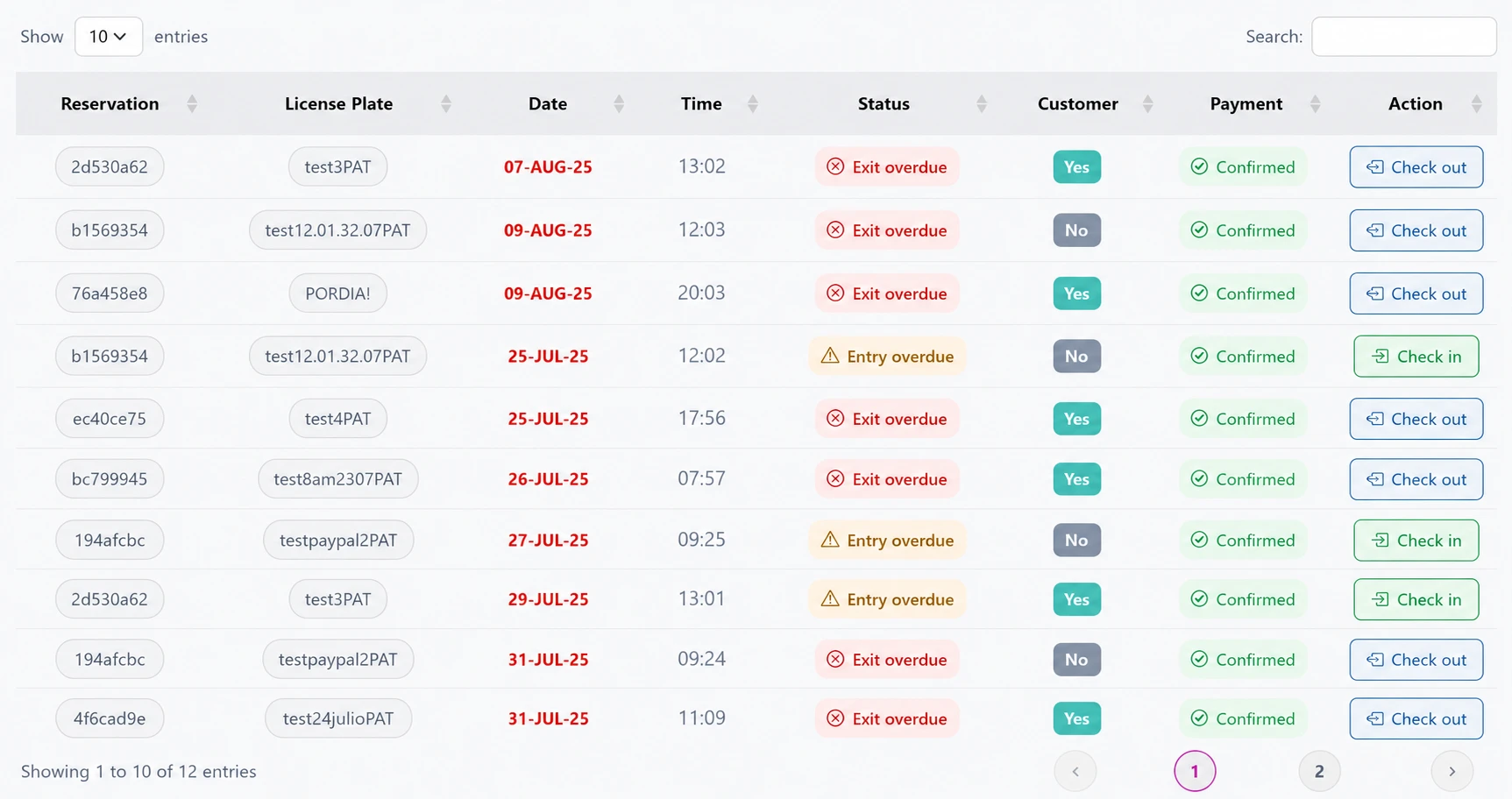
Entries and exits affect occupancy percentage, arrivals, departures, and total collected.
Register entry
- Sign in as cashier and open the Reservations module.
- Search for the reservation by customer name, license plate, or reservation code. Filter by Pending if needed.
- Check dates, vehicle type, and sector. If everything is correct, click Register entry.
- The system marks the space as occupied and changes the status to In progress.
No-show without a customer or vehicle
In Reservations or Today's reservations, select Reactivate and enter. If a customer or vehicle is missing, complete those details in Assign customer. This does not reactivate the reservation yet. Check the plate and code, then confirm Reactivate and enter. Cancel or close returns without registering entry.
Capacity is checked again on confirmation. If no space is available, the reservation remains No-show even if its identity has been linked. Do not force entry or change the status manually; notify an administrator.
Register exit
- In Reservations, filter by In progress and open the corresponding reservation.
- Check that there are no pending additional charges and select Register exit.
- The space becomes available again and the reservation is marked Finished. The summary and occupancy are updated.
Overstay on exit
Review the overstay and choose Collect (open cashbox), Waive (reason), or, only as administrator, Authorize debt (reason). Cash does not require a reference; for a bank transfer, enter the transaction reference. Without a valid decision the vehicle stays inside. Confirm the original balance separately; a preview is not a payment.
Best practices
- Confirm the customer identity and license plate before registering entry.
- Use search and filters for date, status, and vehicle to serve customers faster.
- Remember that entry and exit affect occupancy and the parking summary indicators.