
Reservation management (cashier role - daily reservations)
From the cashier role, you can search, filter, confirm, cancel, and also create new reservations for your customers. Everything affects occupancy and the parking summary.
Step-by-step video
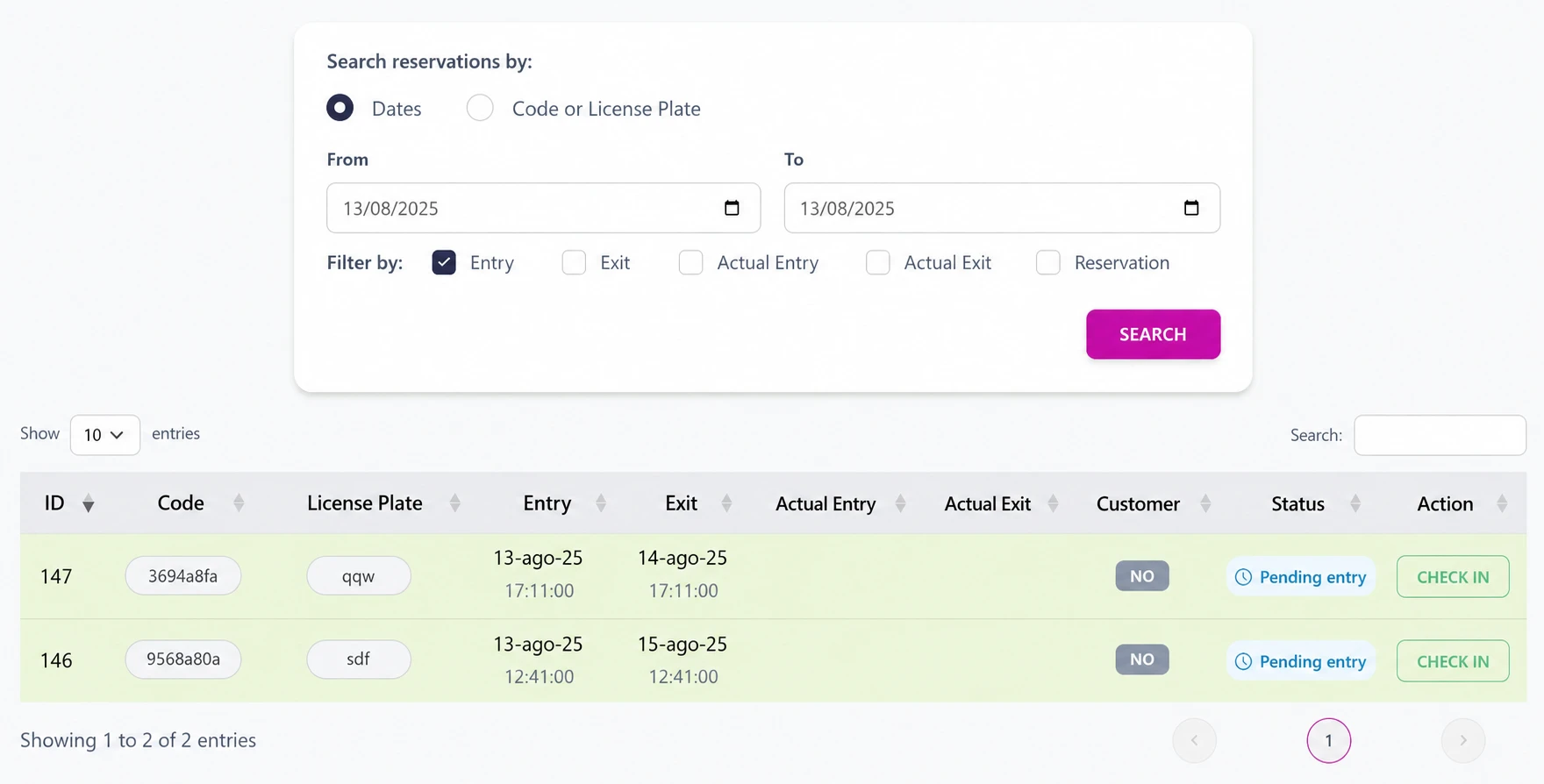
List with search and filters by date, status, sector, or vehicle type.
View and filter reservations
- Use search by name, license plate, or reservation code.
- Filter by entry or exit date, actual dates, and reservation creation date.
- Open the reservation to view customer details, dates, price, payments, sector, or space.
Confirm entry or exit
EntryPending -> In progress
- Create the customer and vehicle if needed.
- Check data: dates, vehicle, sector, and payment.
- Complete the reservation data when applicable.
ExitVehicle exit
- Open the reservation.
- Select the corresponding action and confirm.
- If there was an online payment, follow the refund flow for that payment method.
Define cancellation policies, timing, and penalties together with the administrator.
Best practices
- Confirm the customer identity before confirming or canceling.
- Check availability and the correct sector when creating or editing.
- Remember that actions affect occupancy and summary.