Run the printing plugin when Windows starts
In this tutorial we will configure the printing plugin so it is running as soon as the computer starts.
1) Put the executable in a safe folder
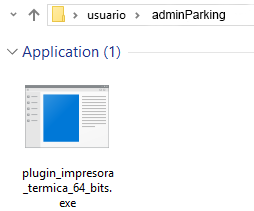
The executable that will open at startup should be in a stable folder; for example, do not leave it in Downloads or Documents.
In this case, both the file with extension .exe and the DLL file will be placed in a folder such as C:\Users\usuario\adminParking.
2) Create a desktop shortcut
After copying the files to that folder, create a shortcut. To do this, right-click and select Send to desktop (create shortcut).
3) Open the Startup directory
Now open the directory where the shortcut will be placed. To find it easily, press Windows + R and, in the window that appears, run:
shell:startup
As shown in the image:
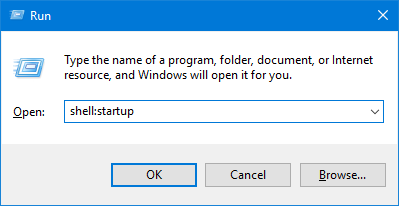
This command opens the Startup folder, where programs that run when the system starts are located.
4) Copy the shortcut to Startup
Now copy the desktop shortcut to the folder that just opened. In our case, it could look like this:
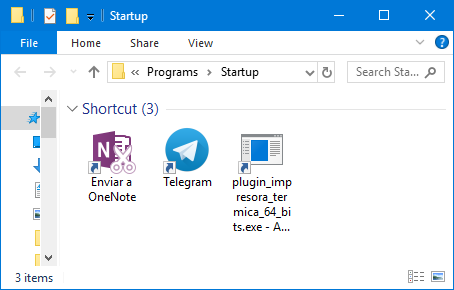
Done. Now, every time the computer starts, the ticket printing plugin will open automatically. You can restart the computer to confirm it.
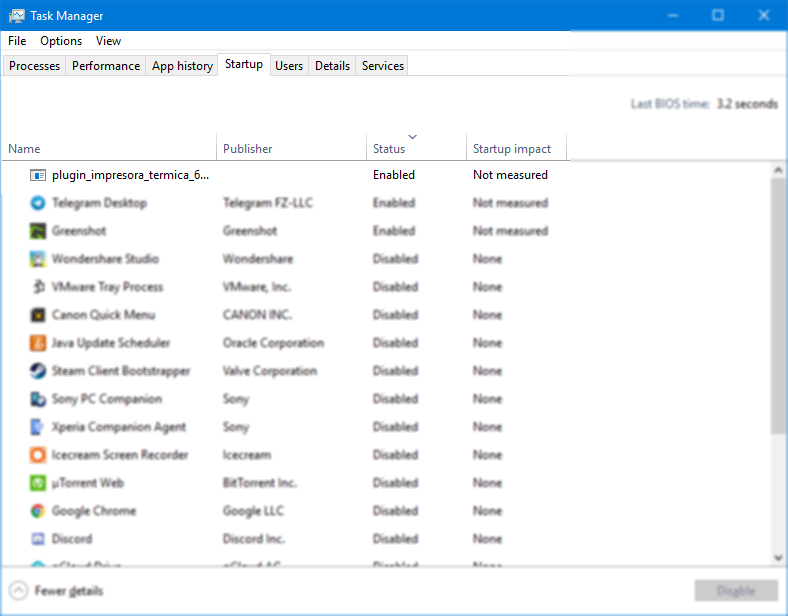
Check startup execution
You can check that the plugin runs when Windows starts. To do this, restart the computer, open Task Manager on the Startup tab and look for the plugin in the list.