Printing plugin
1) Download plugin
To print from AdminParking, you need to install a plugin on the garage computer where tickets will be printed. This plugin sends print requests from AdminParking to the local printer.
Download the plugin for your platform (Windows, Linux, or Raspberry Pi) and then extract it. On Windows, you will get an executable file and a DLL file.
If Chrome or your browser shows a warning such as This file is not commonly downloaded and may be dangerous click Download. You may see several similar warnings; grant the required permissions, including Firewall access.
In most cases, the system will be Windows 64-bit. If you use Windows but do not know whether it is 32-bit or 64-bit, you can check it by following the following instructions.
Here you can download the plugin for your operating system:
- For Windows 64-bit (most cases)
- For Windows 32-bit (usually older computers)
2) Run the plugin
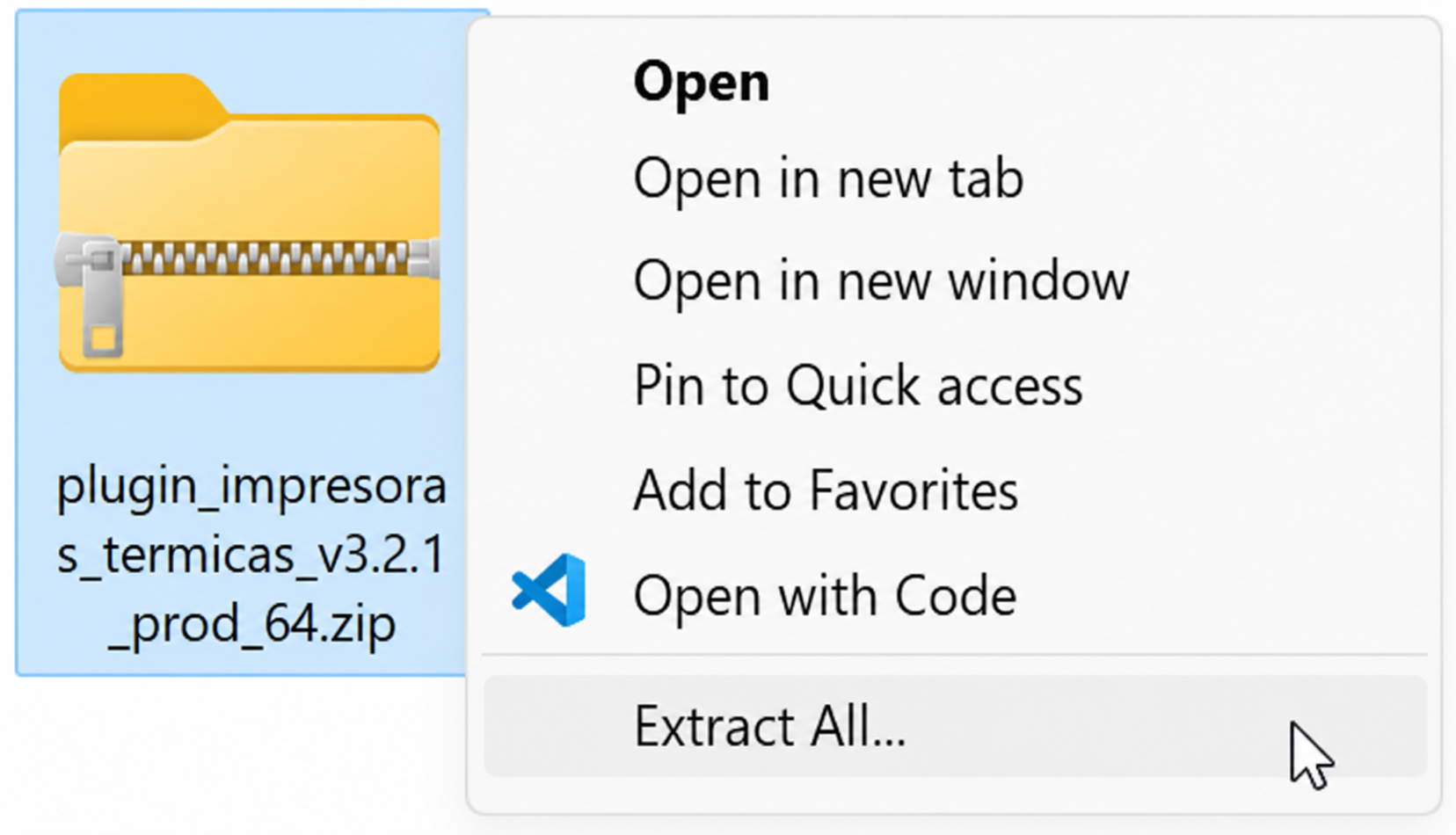
After downloading, if it is a zip file, extract it. On some systems the extraction option appears when you right-click the file; on others, you can use WinZip, 7-Zip, or similar software. You must extract and run the plugin, not just open it from the extractor.
Sometimes Windows or your antivirus will block the plugin from running. Click More info, Advanced options, or the option that lets you run it anyway. The option may vary by operating system and antivirus. Grant the plugin all requested permissions.
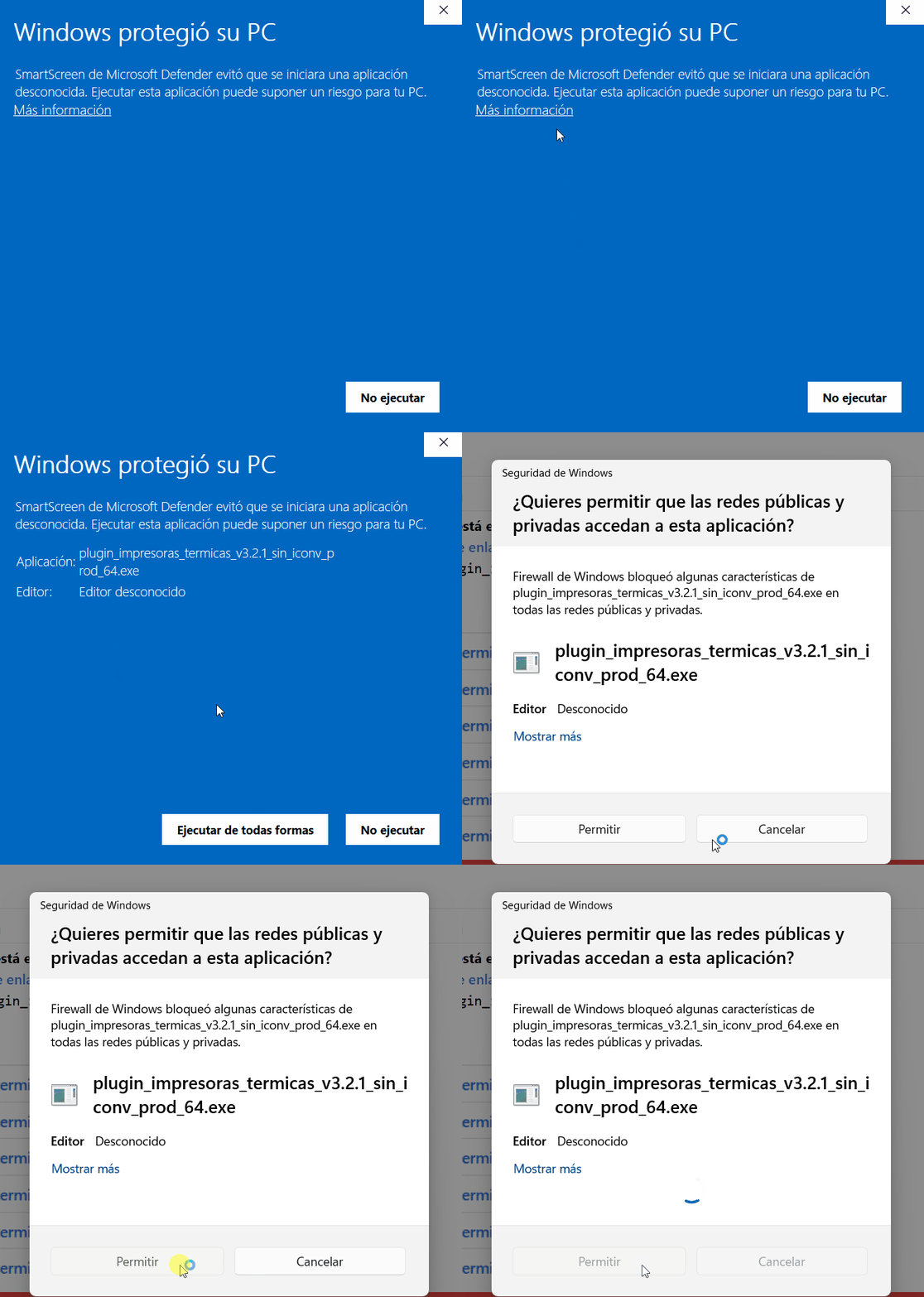
Now run the file named plugin_impresoras_termicas_v3...exe. Grant all permissions so it can work. No window will open, but the plugin will keep running in the background. You can check it in Task Manager, under details.
3) Print test
Remember that the plugin must be running in the background. Select your thermal printer and print a sample ticket. You may need to reload this page to refresh the printer list.
Note: if the list is empty, the plugin is not running.
4) Run the plugin automatically
To print tickets and invoices from AdminParking, the printer plugin must always be running. If the computer starts and the plugin does not run, nothing will print. To avoid finding the plugin and double-clicking it every day, we recommend setting it to start automatically with Windows. You can do this by following these steps.