Users
Settings, profile, and vehicle
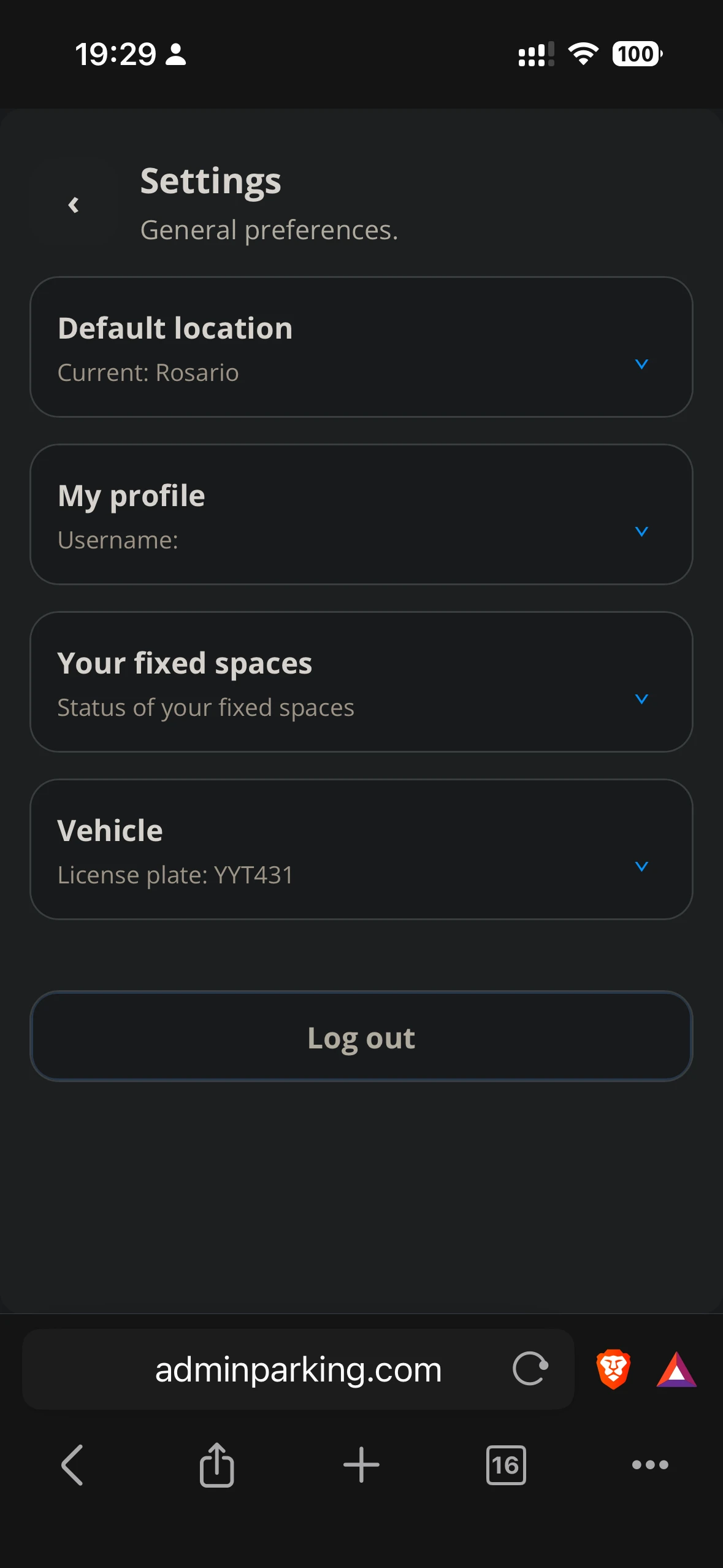
Settings lets users choose default location, update personal data, and add the vehicle they will use.
Default location
- Tap the Settings icon from home.
- In Default location, select the usual location.
- Save the change.
- The next reservation will use that location as the first option.
Profile and vehicle
- In Profile, edit name or change password.
- To change password, complete new password and current password.
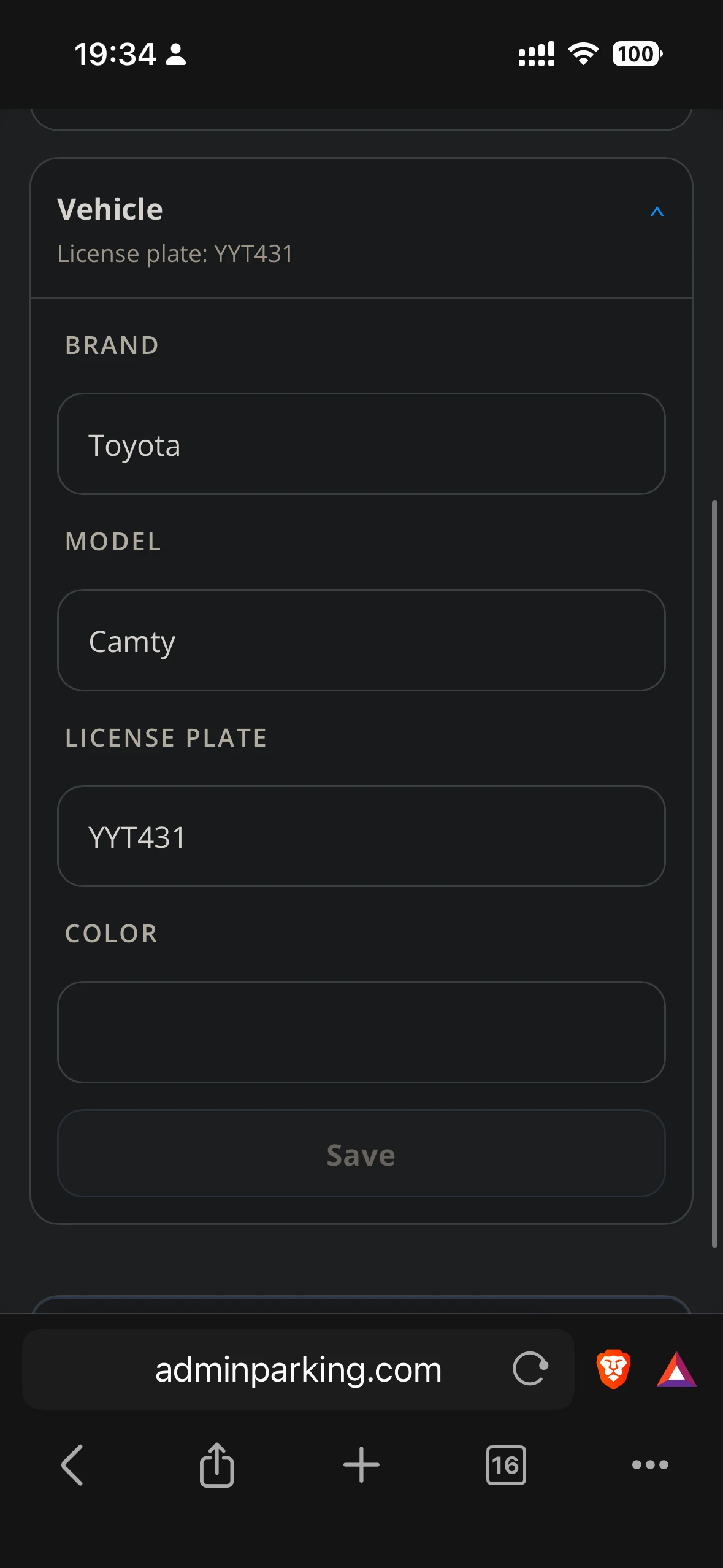
- In Vehicle, add make, model, license plate or registration, and color.
- Save each modified block.
The license plate or registration helps the security or reception team identify the vehicle associated with each reservation.