Administrator
Reservations
Reservations lets you control occupancy by user, date, location, space, and status.
Review reservations
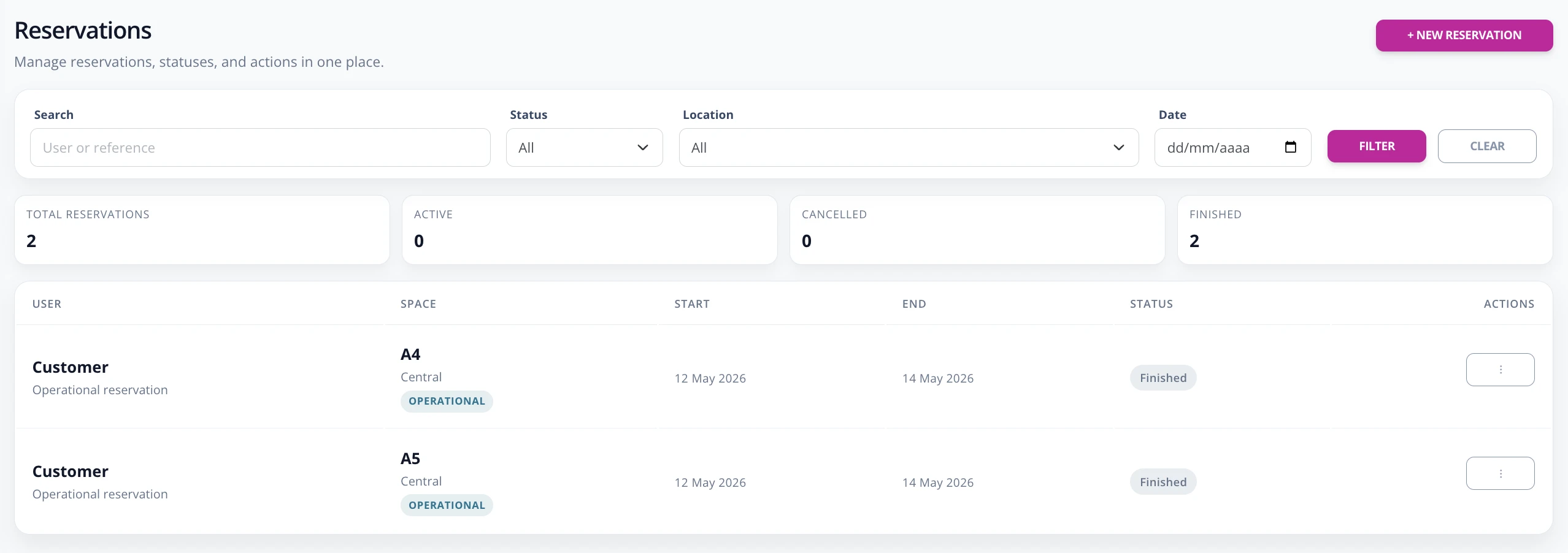
- Go to Enterprise -> Reservations.
- Filter by name or username, status, location, and date.
- Review the top summary to see confirmed, in-progress, canceled, or completed reservations.
- Open a reservation detail from the row actions.
- When applicable, use actions such as Cancel, Recover, or Check-in.
Create a manual reservation
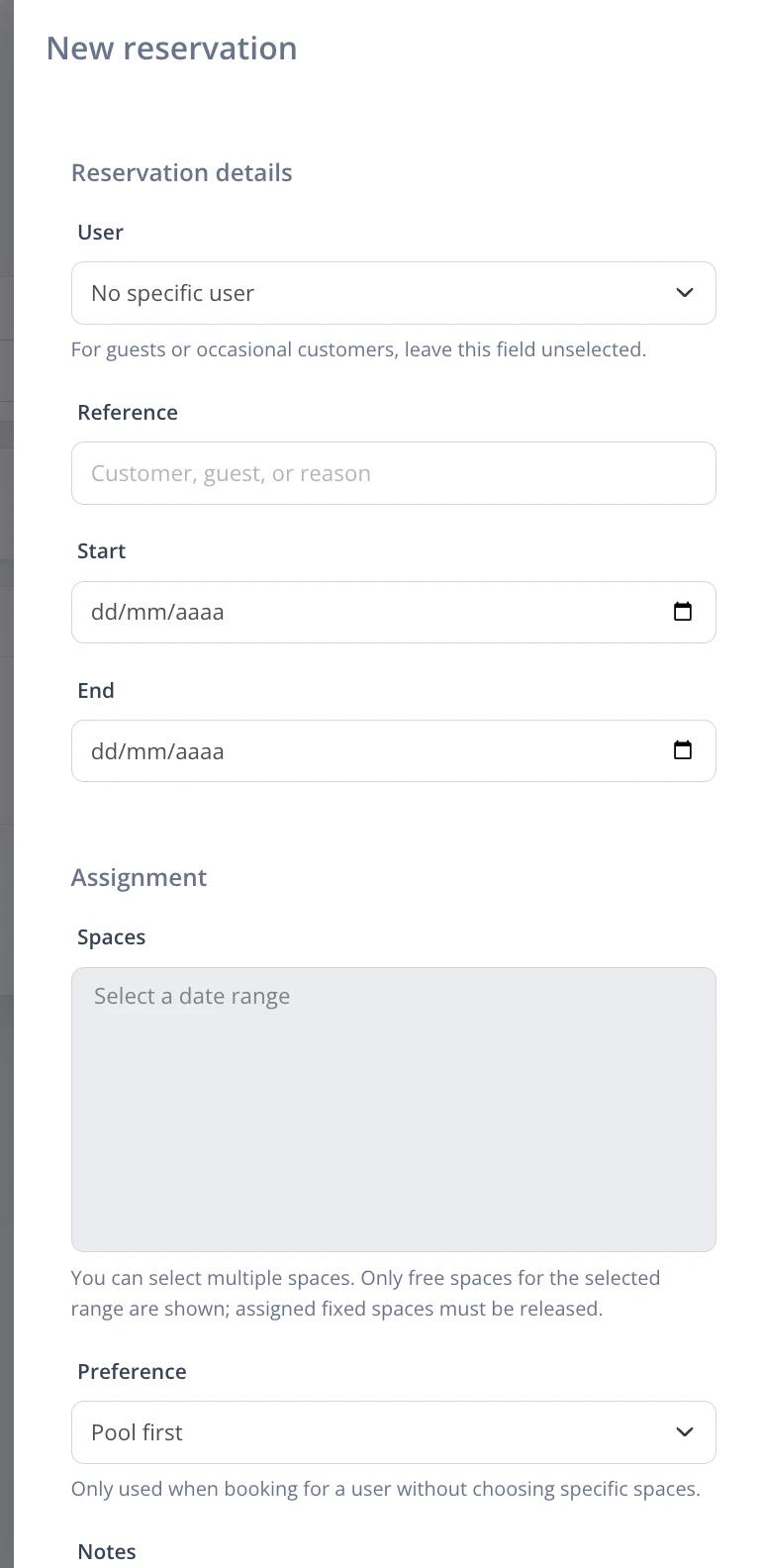
- Press New reservation.
- Select the user and the date or time range.
- Choose a specific space if you want to force one; if left empty, the system assigns according to rules.
- Define the source preference: pool or released spaces, as applicable.
- Confirm with Create reservation.