
Administrator
Rules and policies
Rules define how spaces are assigned, how many reservations a user can make, and when a fixed space can be recovered.
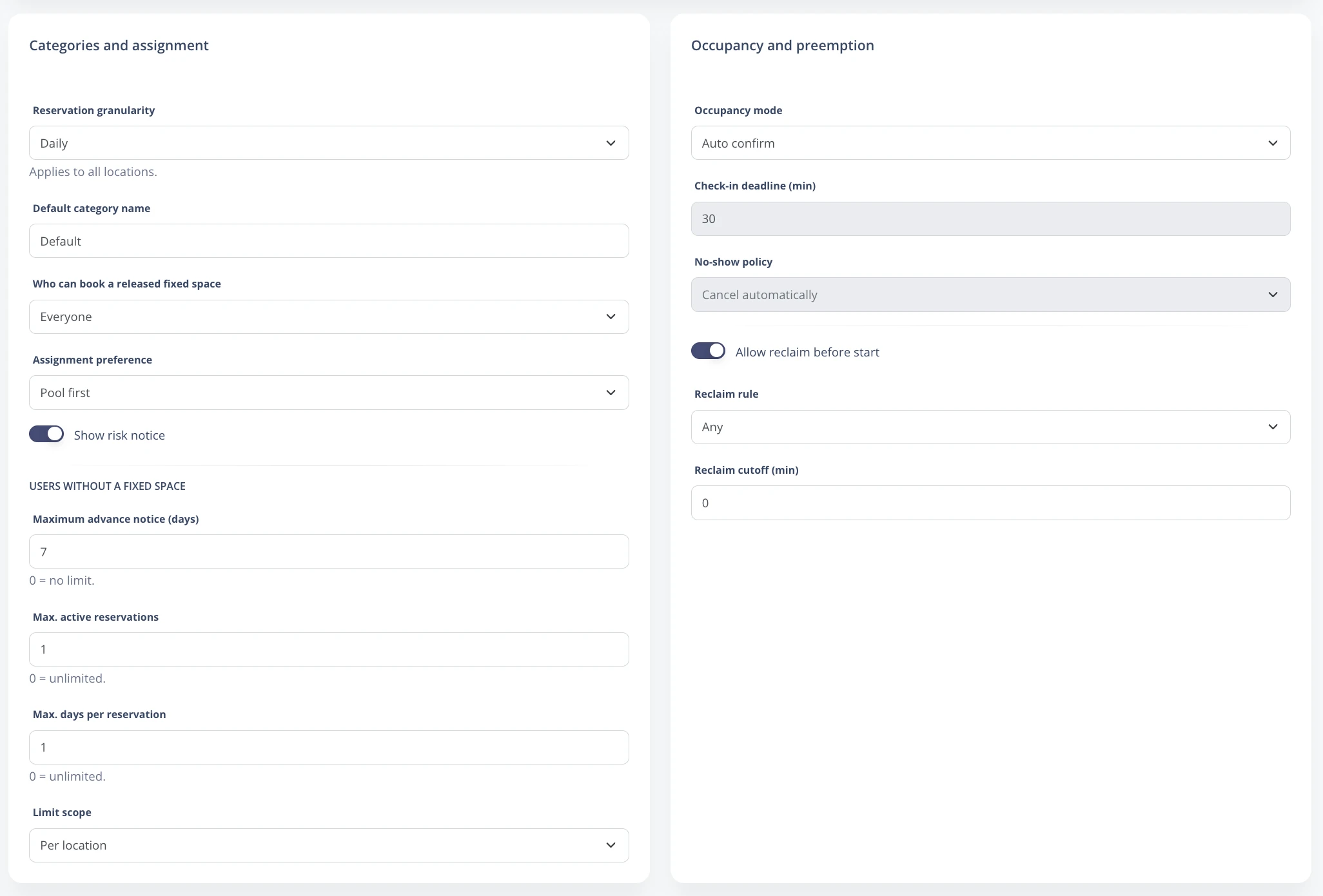
Steps
- Go to Enterprise -> Rules.
- In Categories and assignment, define whether everyone can reserve released fixed spaces or whether the user's category is respected.
- Choose the assignment preference: pool spaces first or released fixed spaces first.
- In Users without fixed space, define maximum lead time, active reservations, maximum days per reservation, and whether the limit applies by location or account.
- In Occupancy and recovery, configure check-in, no-show, recovery permission, and time cutoff.
- Save changes with Save rules.
Important options
| Granularity | Allows reservations by day or by hour, depending on the enabled configuration. |
| Who can reserve a released fixed space | Controls whether the released space is available to everyone, the same category, or priority categories. |
| Max. active reservations | Prevents a user from accumulating future reservations. |
| Recovery rule | Defines when the owner can recover a fixed space that has already been taken by another user. |
Before changing rules in an active account, review active reservations and future releases to avoid unexpected behavior for users.