
Administrator
Spaces
Spaces is where each location's parking spaces are created and defined as shared, fixed, or inactive.
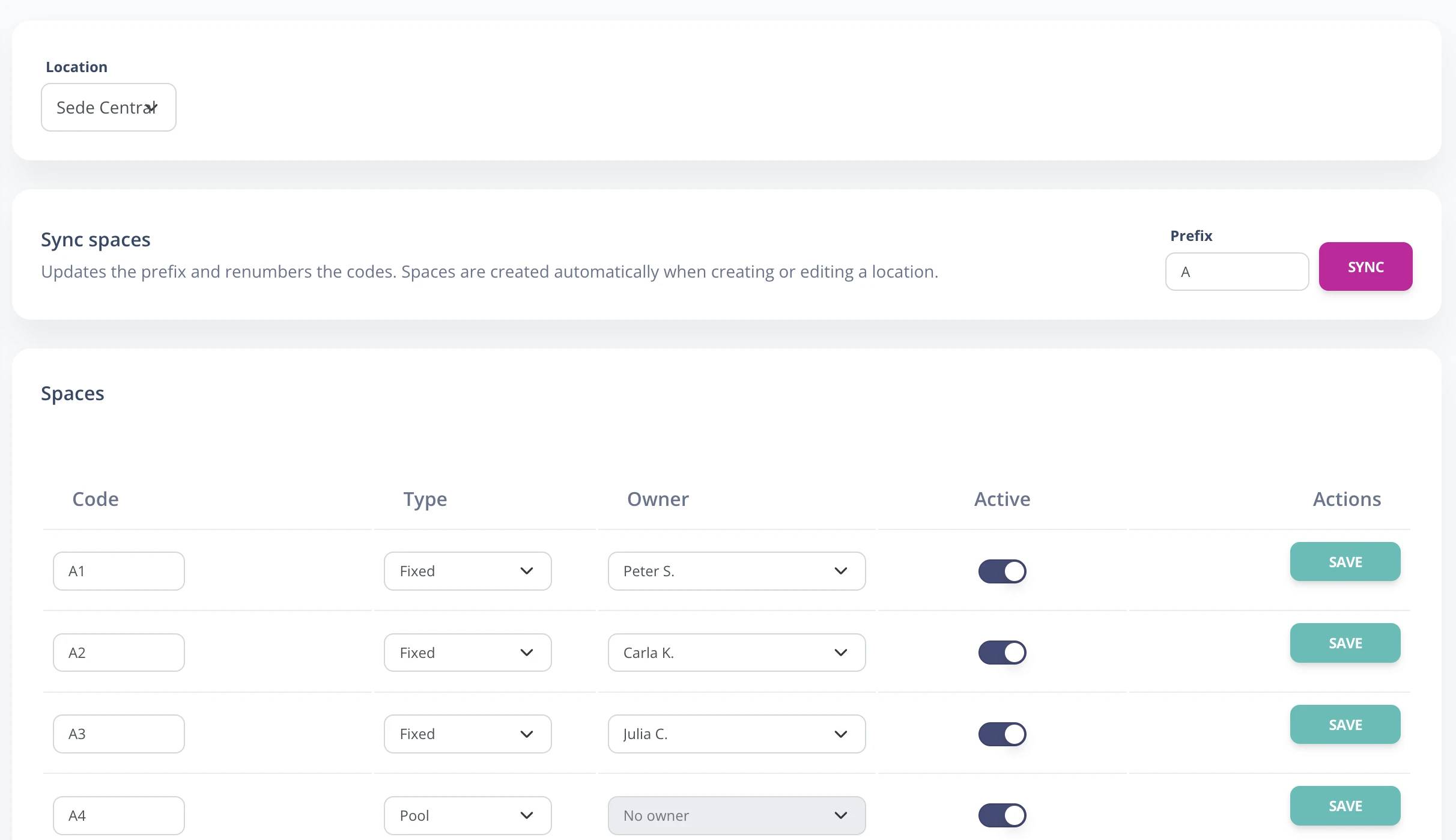
Sync and classify spaces
- Go to Enterprise -> Spaces.
- Select the location you want to manage.
- In Sync spaces, choose the code prefix, for example A, P, or S.
- Press Sync to generate spaces according to the location capacity.
- For each space, adjust the code, choose POOL or FIXED, and assign an owner if it is fixed.
- Use the Active switch to temporarily remove a space from availability.
- Save each modified row.
If you reduce a location's capacity and sync, the system may ask for confirmation before deleting excess spaces. Review assignments and reservations before continuing.