D. Cashier user
The cashier user is responsible for daily parking operations, including vehicle entries and exits, payments, and cash register control. This tutorial walks through each available cashier function so tasks can be completed effectively.
Printing plugin installation
Before operating, the cashier must install the printing plugin required to use the thermal printer. Follow the platform steps to install the plugin.
D. 1. Vehicle entry and exit
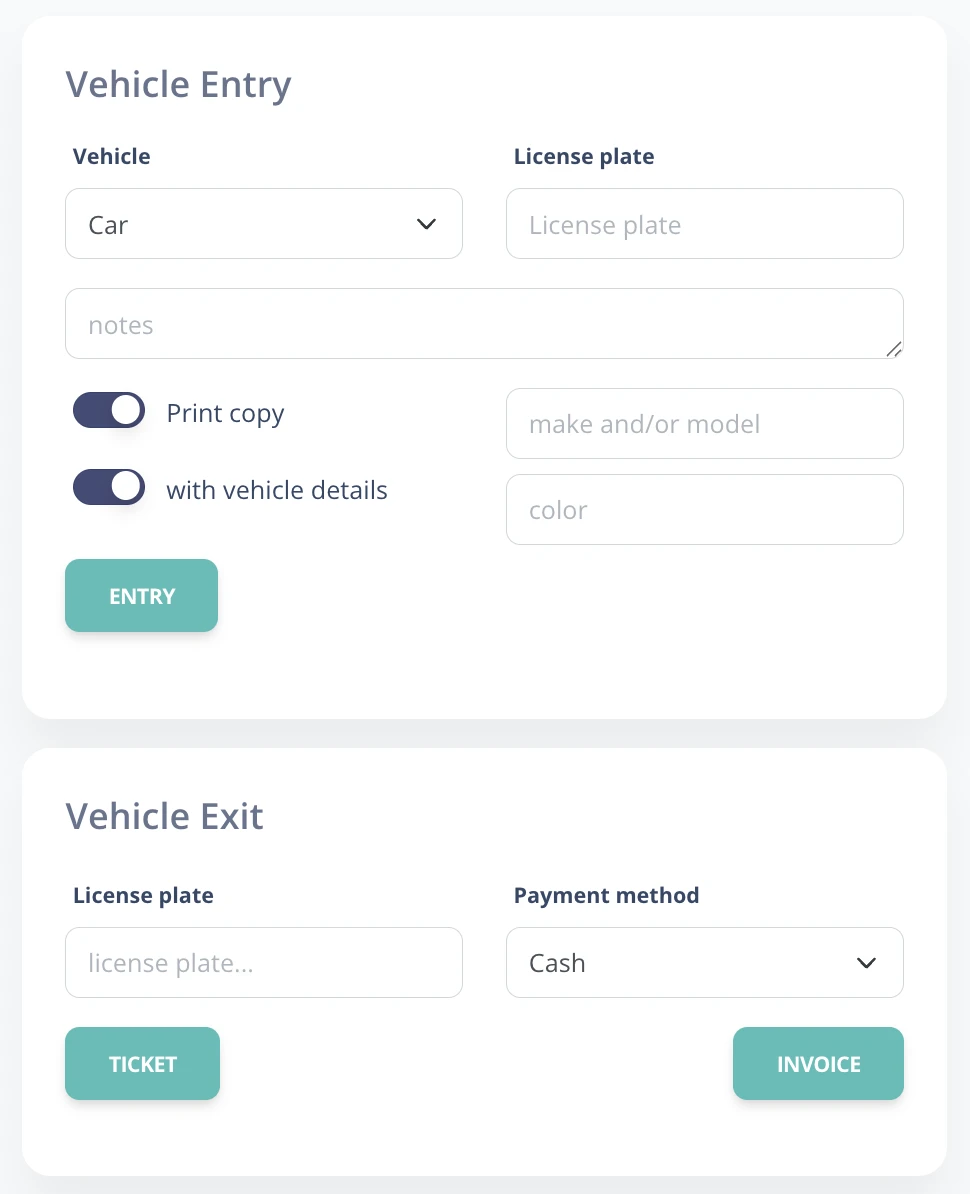
Steps to register a vehicle entry
- Vehicle type selection: The cashier must select the type of vehicle entering.
- This selection matters because rates may vary by vehicle type.
- License plate entry: Enter the license plate number in the corresponding field.
- The system validates the plate format and checks that it is not duplicated.
- Vehicle notes: Optional notes related to the vehicle can be added.
- Example: "Scratch on left door".
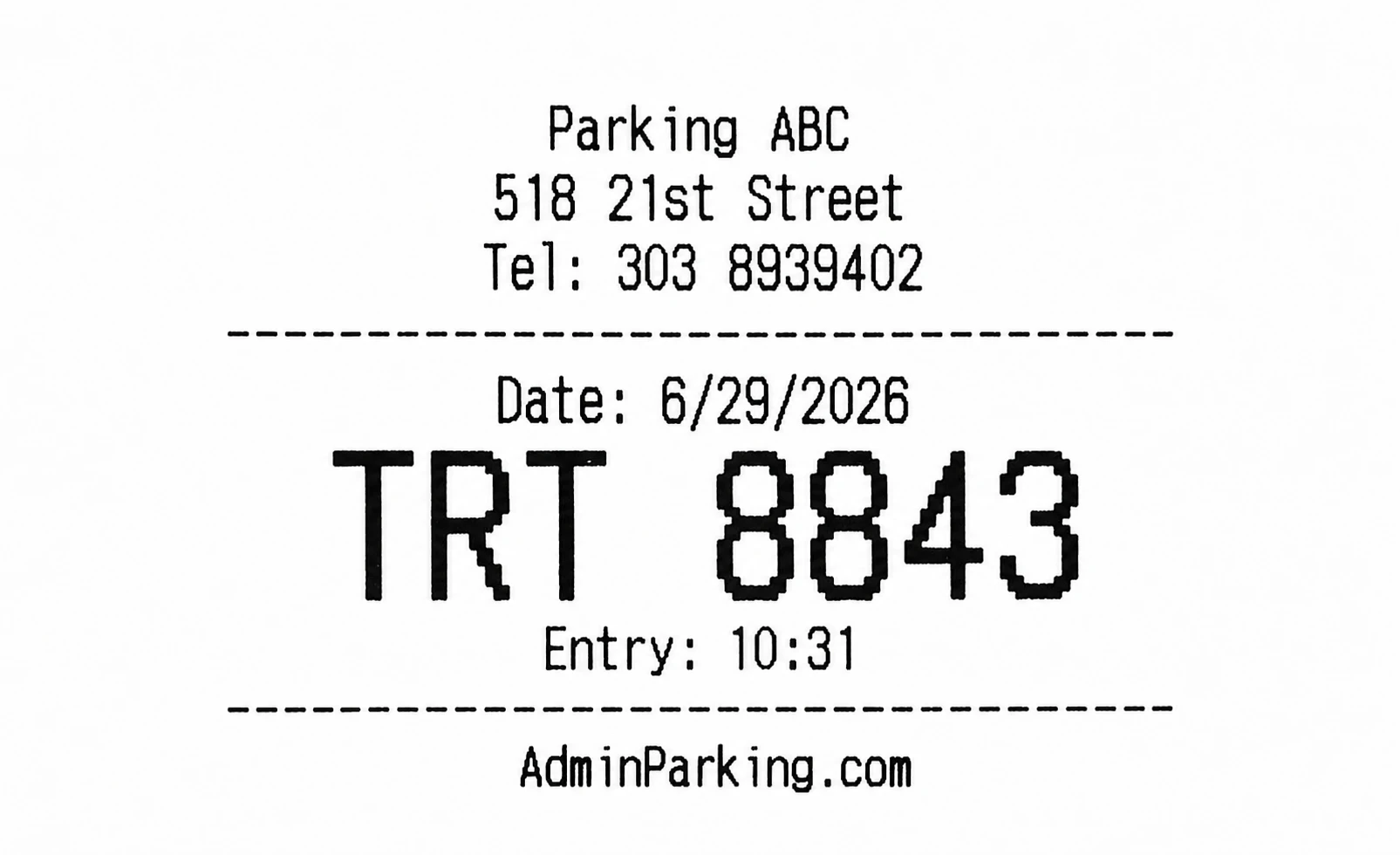
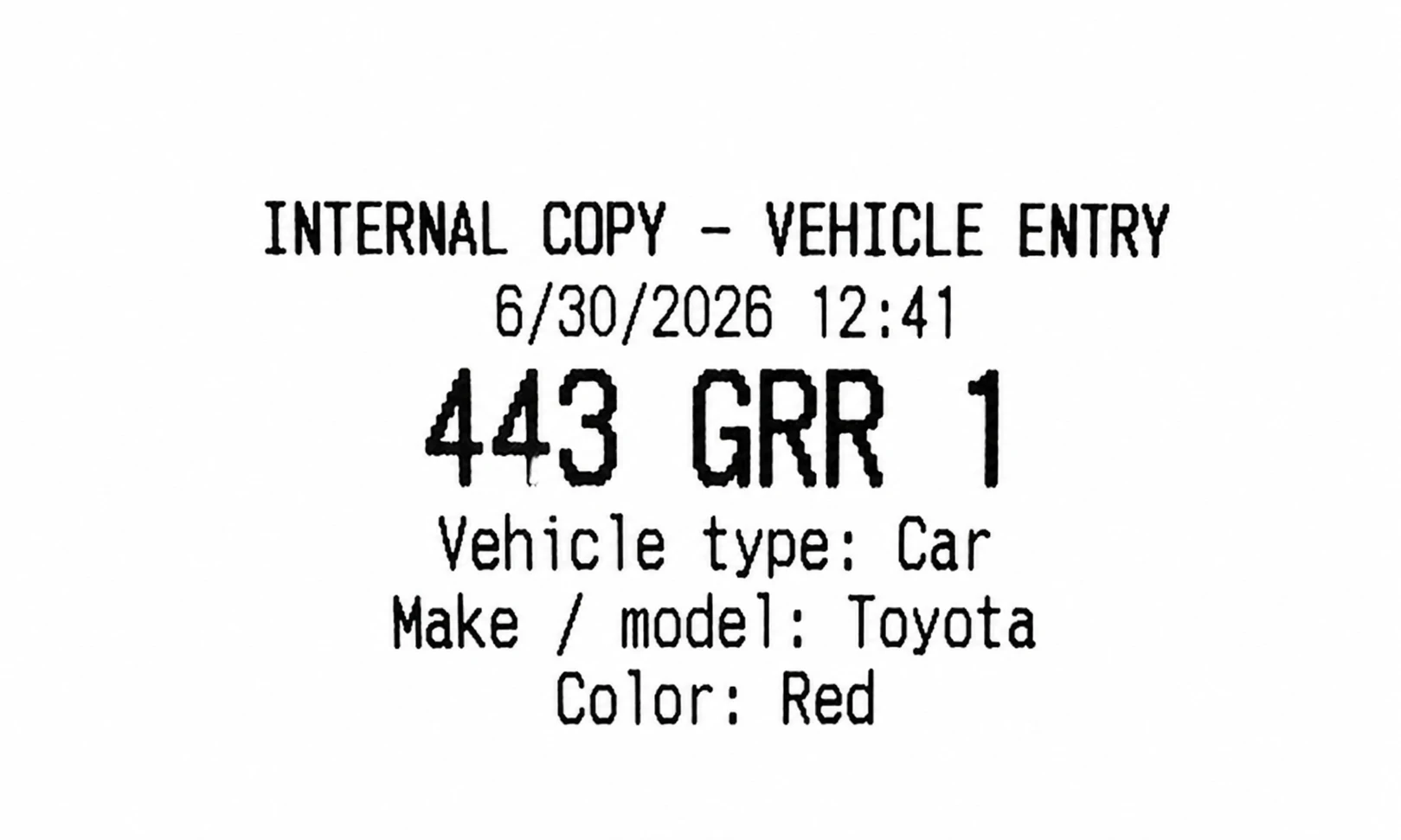
- Entry ticket issue: The system generates a customer ticket. Depending on configuration, the ticket may include different information. An internal copy can also be printed for parking control.
Detailed ticket configuration
Tickets in AdminParking can be configured with different information levels, allowing a better customer experience and more efficient cashier work. Configuration is handled by the Administrator user, but the cashier should understand the available options to operate correctly.
Ticket configuration options
- Basic ticket information:
- Parking name and address: Always present so the customer has a clear reference.
- Entry date and time: Used to determine the vehicle stay and calculate the amount due.
- License plate number: Used to identify the vehicle.
- Additional configurable options:
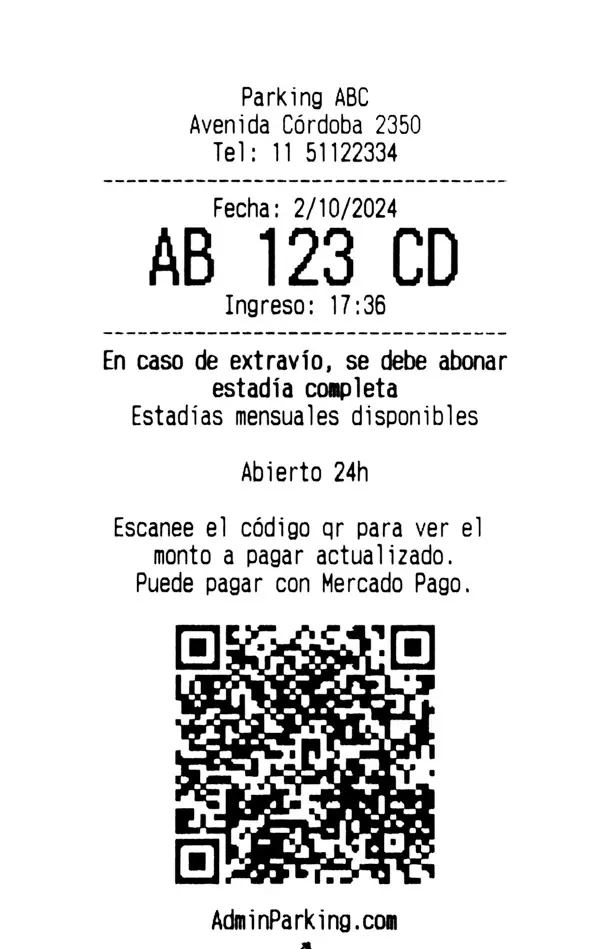
- Parking phone number:
- If the administrator enters a phone number in settings, it will appear on the ticket.
- If WhatsApp is enabled, when scanning the QR code the customer can tap the phone number to open WhatsApp and contact the parking lot directly.
- Custom message lines:
- Line 1 and Line 2 can be added to communicate specific messages, such as lost ticket rules or monthly parking availability.
- Parking hours:
- If opening and closing hours were configured by the administrator, they will be shown on the ticket.
- If there is a special schedule for a specific date, it will be considered and printed on the corresponding ticket.
- QR code:
- The QR code has multiple functions:
- It lets the cashier scan the code and speed up vehicle exit without entering data manually.
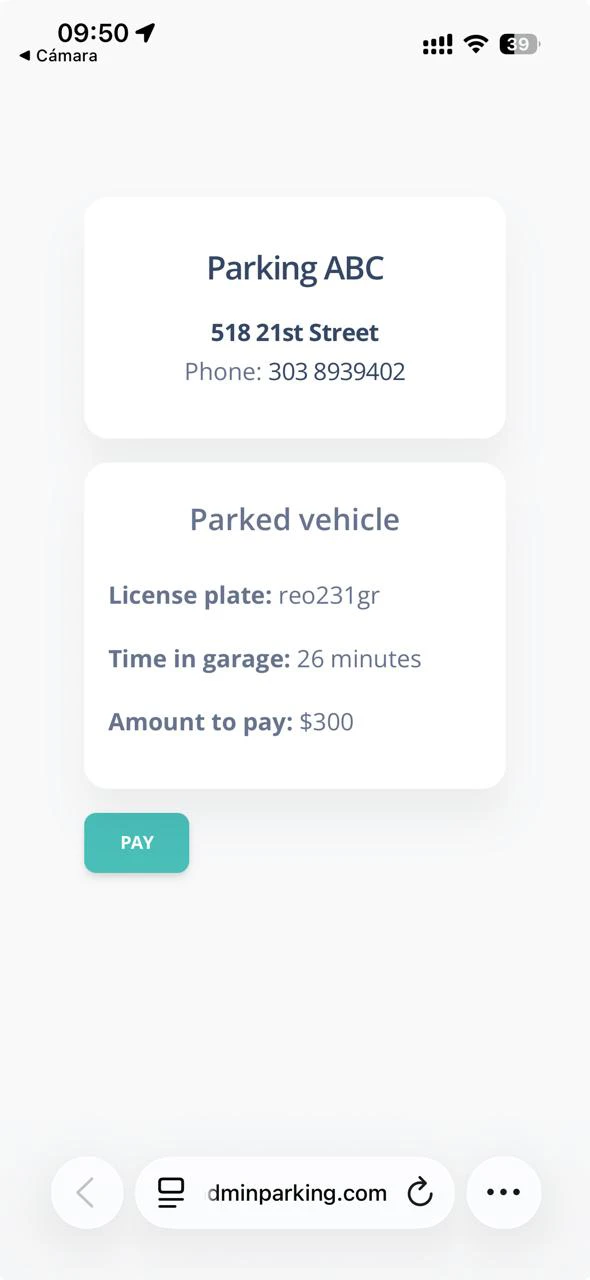
- The customer can use the QR to check the current accumulated amount due at any time.
- If the phone number has WhatsApp enabled, the customer can open WhatsApp from the QR to contact the parking lot directly.
- If Mercado Pago is configured as a payment method, the QR lets the customer pay online from their device.
- Internal ticket copy:
- An internal copy of the entry ticket can be printed. It may include make, model, or color of the vehicle, useful when keys are left or for valet parking.
- This data is not stored in the database; it is only printed on the ticket copy.
- Parking phone number:

D.1.b Vehicle exit
Vehicle exit is one of the cashier's core processes, where the amount due is calculated and the corresponding payment is collected.
Steps to register a vehicle exit
- Manual license plate entry:
- The cashier must enter the license plate of the vehicle that will exit.
- Ticket issue:
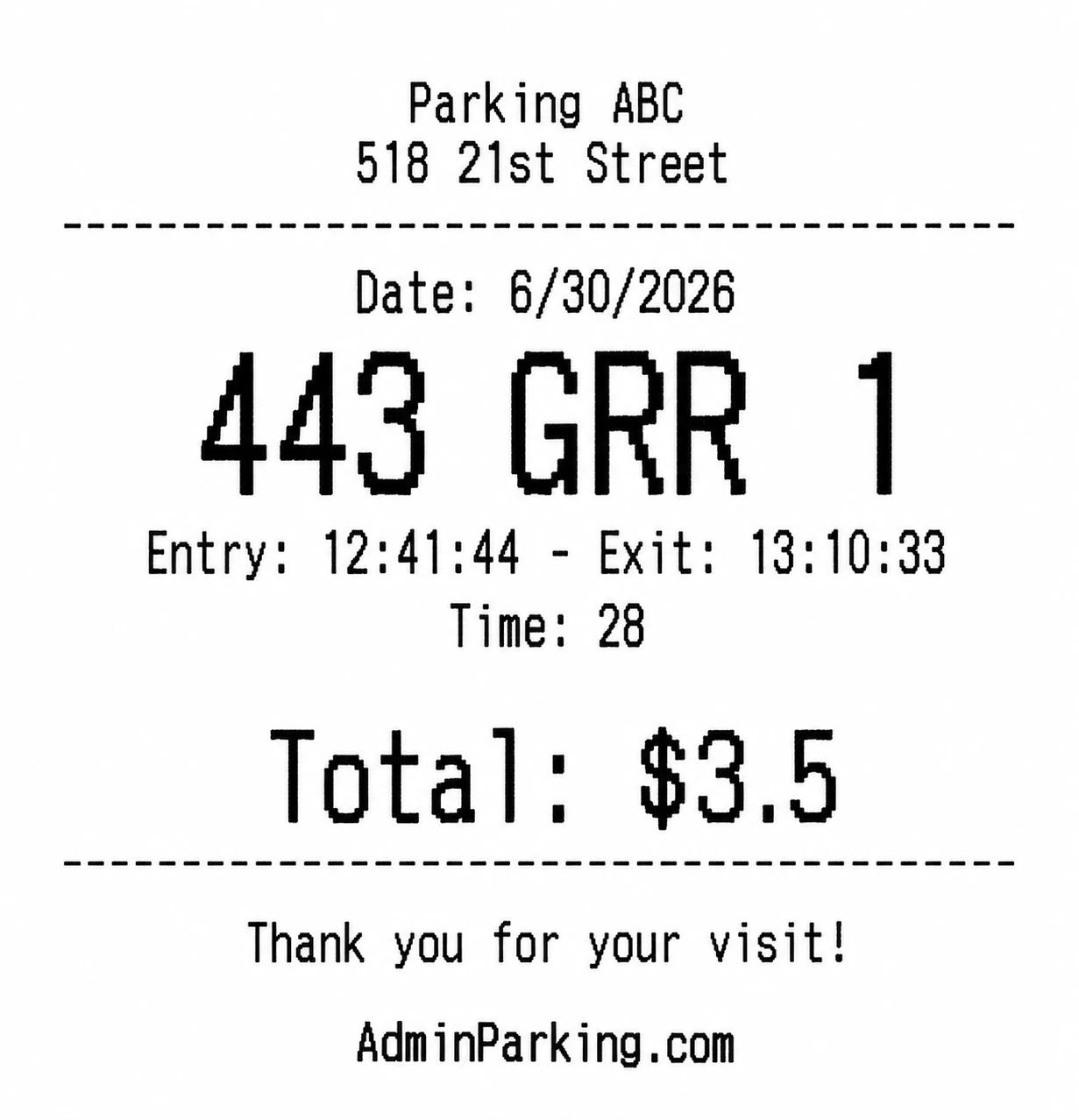
- Exit ticket: By default, the system issues an exit ticket after the vehicle exit is registered.
- Exit with QR code:
- Another way to register the exit is by using the QR code from the entry ticket. The cashier scans the code and the system automatically issues the exit ticket.
- Change payment method:
- By default, all payments are registered as cash payments.
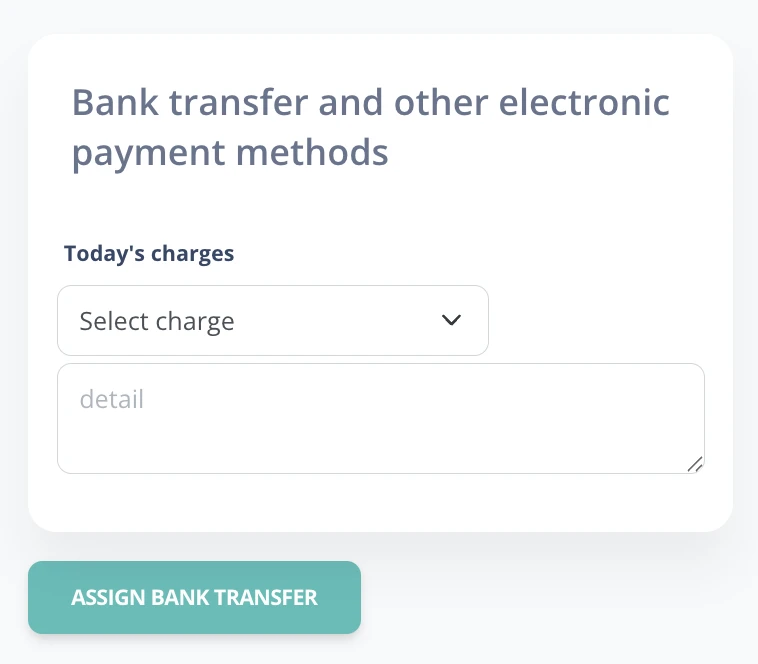
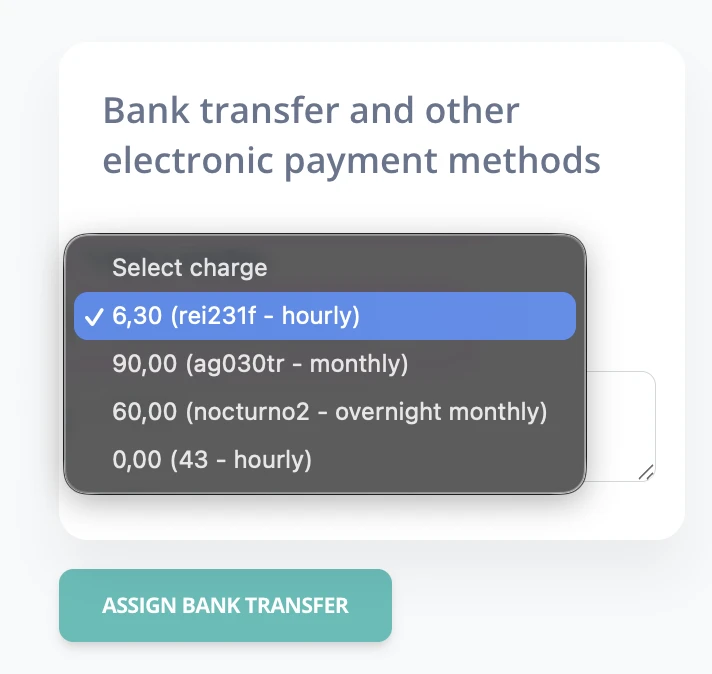
- If the customer changes the payment method after receiving the ticket, for example to bank transfer, the cashier can modify the payment from Transfers.
D. 2. Open / close cash register
D.2.1. Introduction
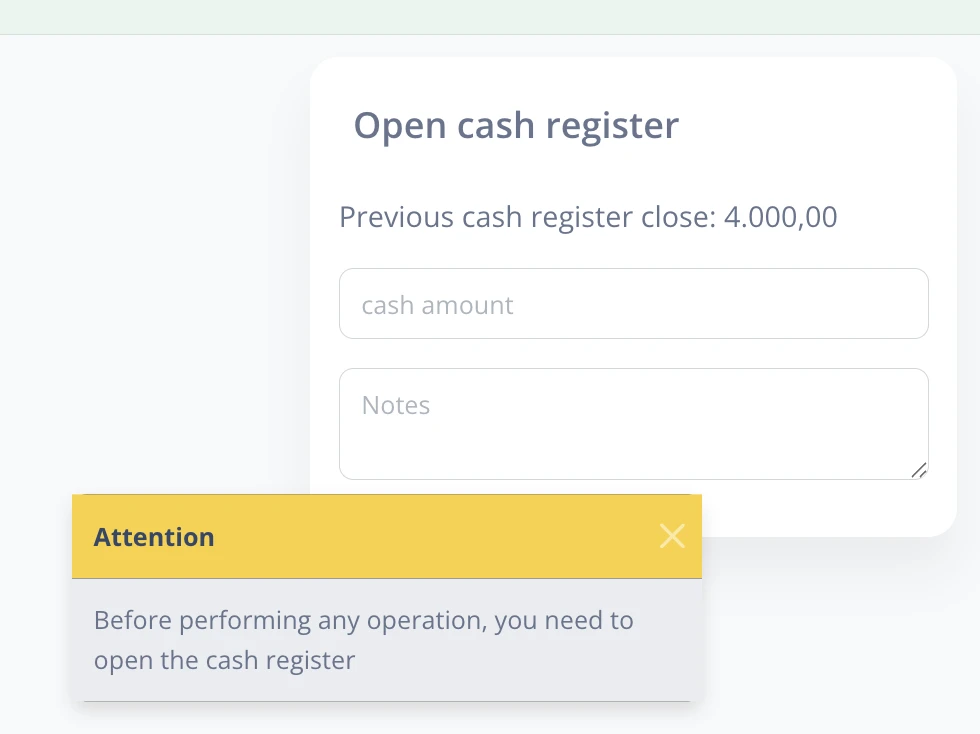
The first thing a cashier must do is open the cash register to operate. Once open, the same menu item allows closing it at the end of the shift.
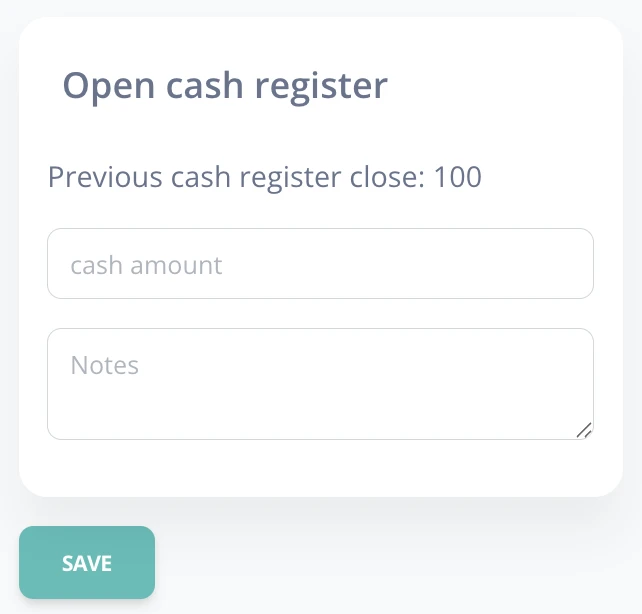
D.2.2. Cash register opening
- The cashier must:
- Count available cash at the start of the shift.
- Enter the amount in the corresponding field.
- Confirm the opening in the system.
D.2.3. Cash register closing
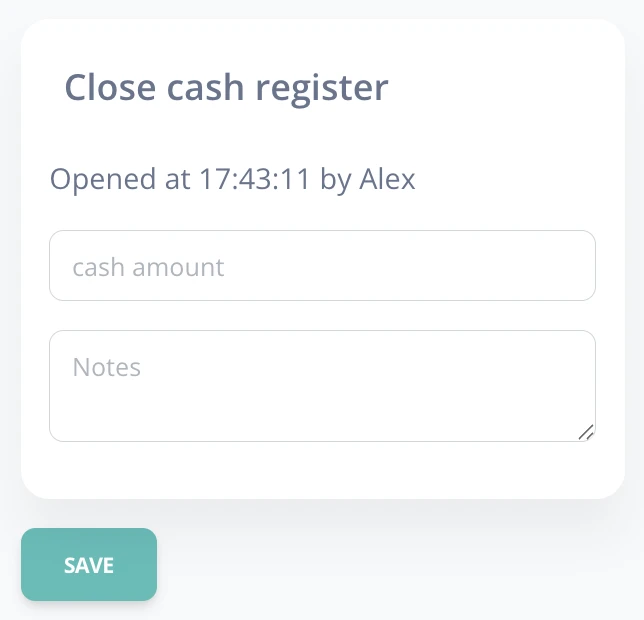
Only the cashier who opened the register can close it at the end of the shift.
- The cashier must:
- Count available cash at the end of the shift.
- Enter the amount in the corresponding field.
- Confirm the closing in the system.
D.2.4. Cash closing ticket
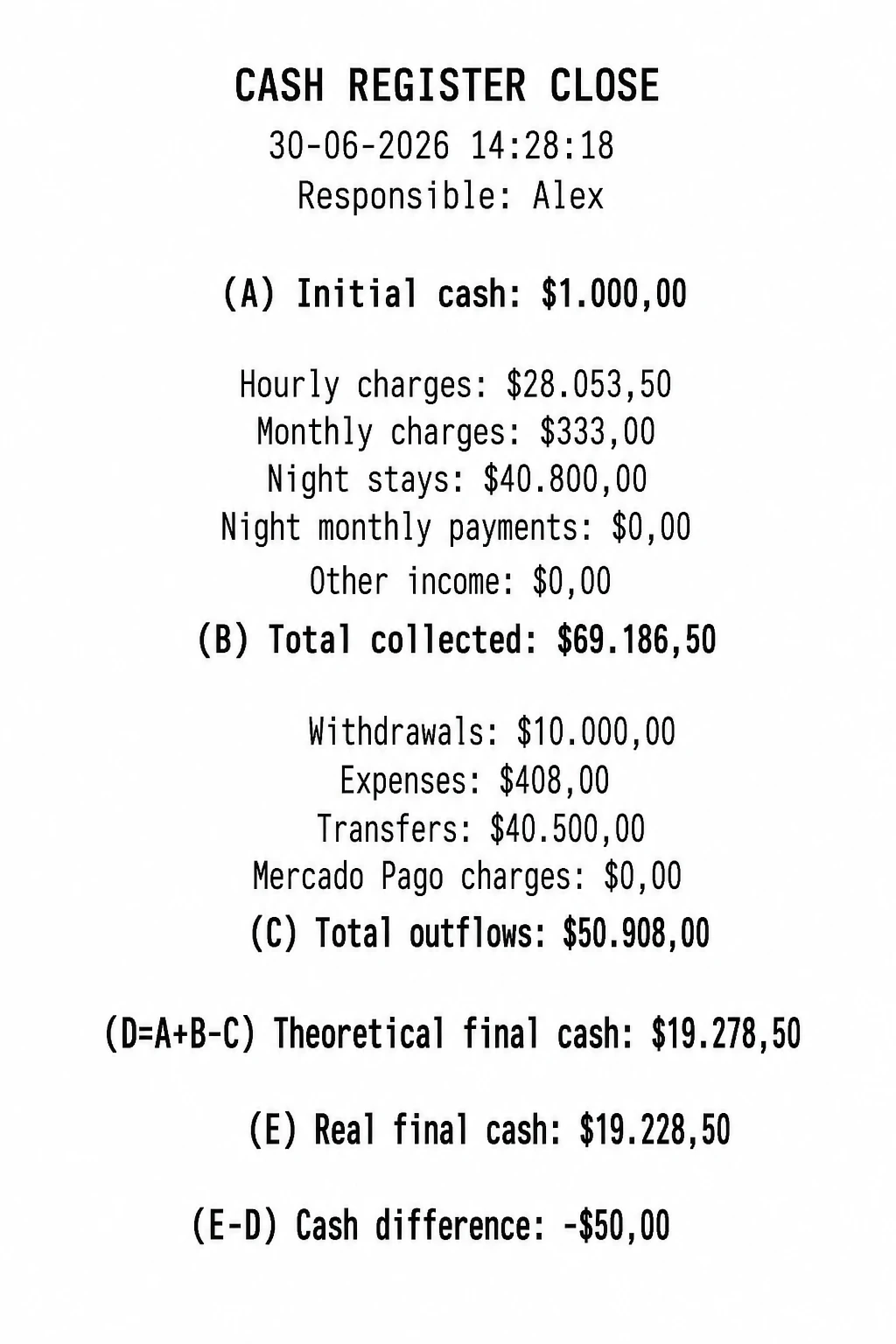
When closing the register, the system automatically generates a closing ticket with a summary of all movements.
- Initial amount.
- Total charged for:
- Hourly rates.
- Monthly plans.
- Car washes and other income.
- Outflows: Withdrawals, cash expenses, transfer payments, and Mercado Pago collections.
- Theoretical final cash: The amount that, according to the system, should be in the cash register.
- Real final cash: Final amount manually counted by the cashier.
- Cash difference: Theoretical vs real.
- Final cash: Difference between theoretical and real cash. If negative, money is missing; if positive, there is a surplus.
D.2.5. Expenses in cash closing
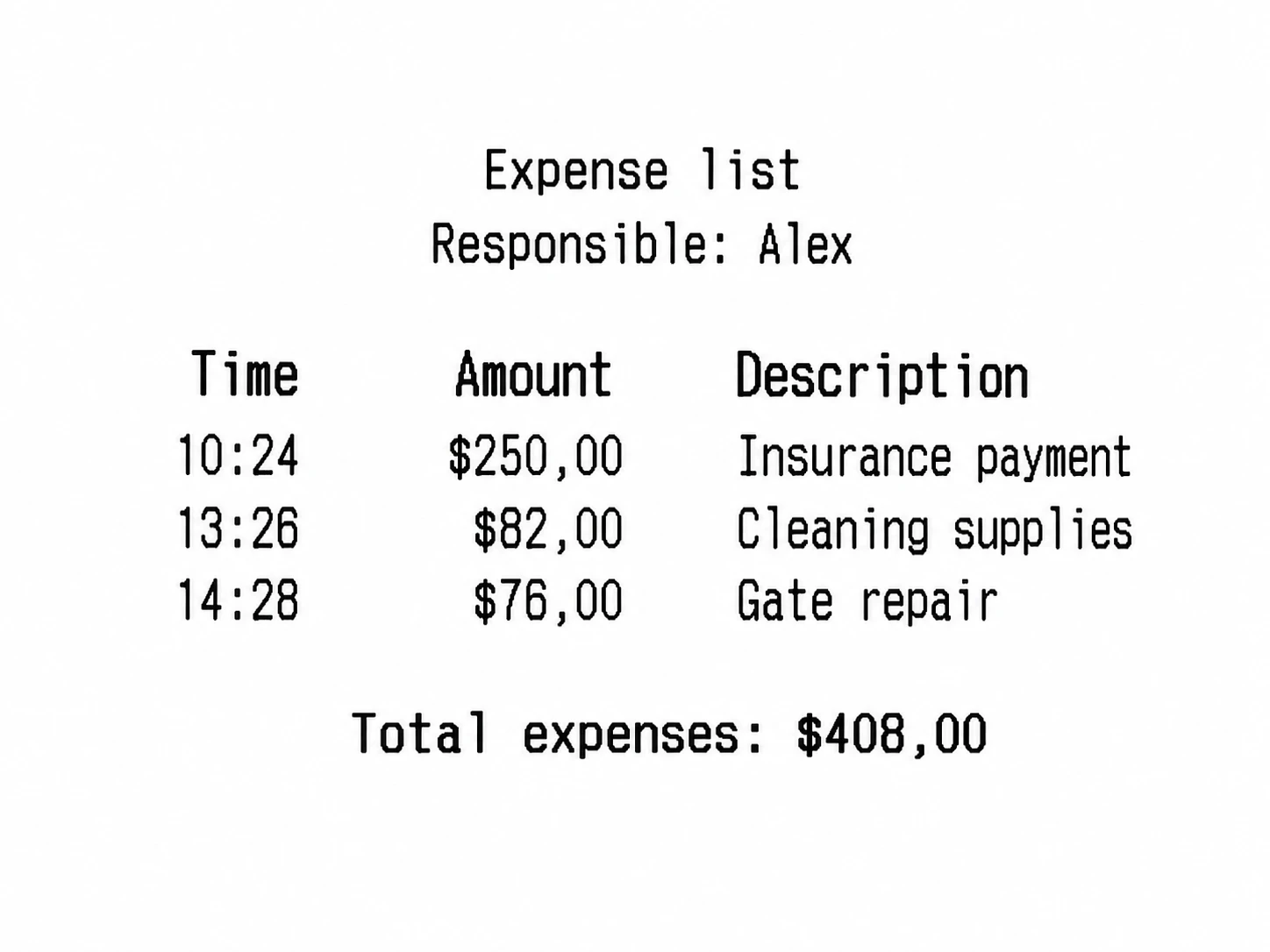
If the administrator enabled this option, a list of expenses recorded during the shift will be printed.
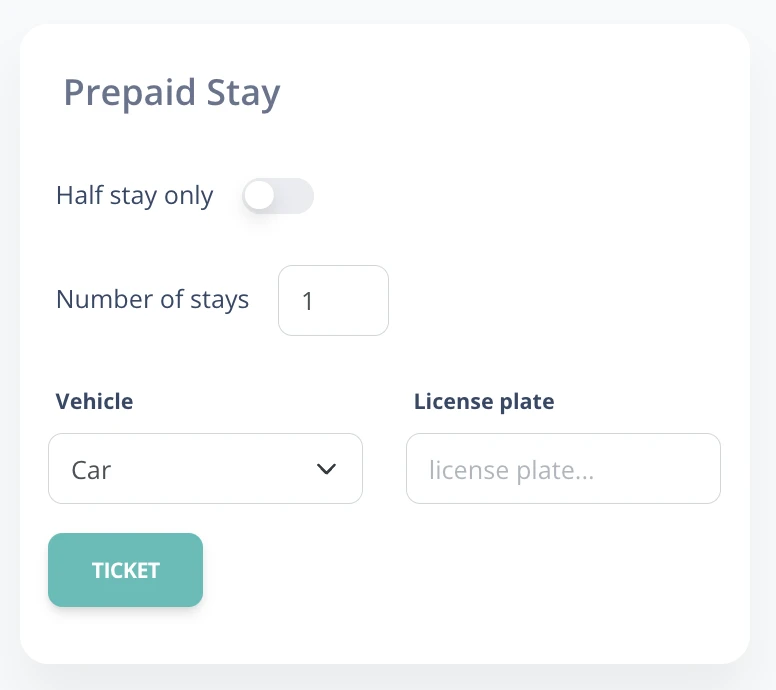
D. 3. Prepaid stay
This option allows registering vehicles that pay for the stay in advance.
D. 4. Expenses
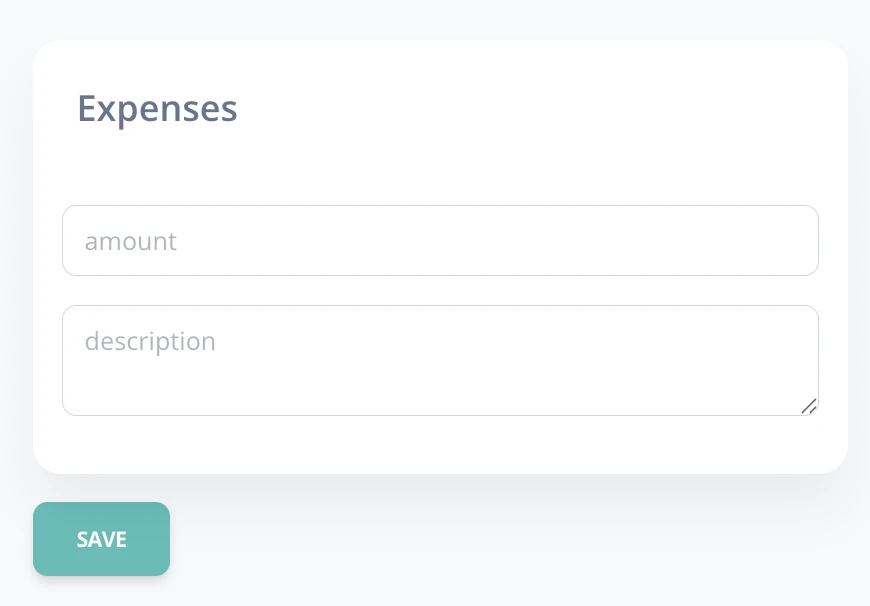
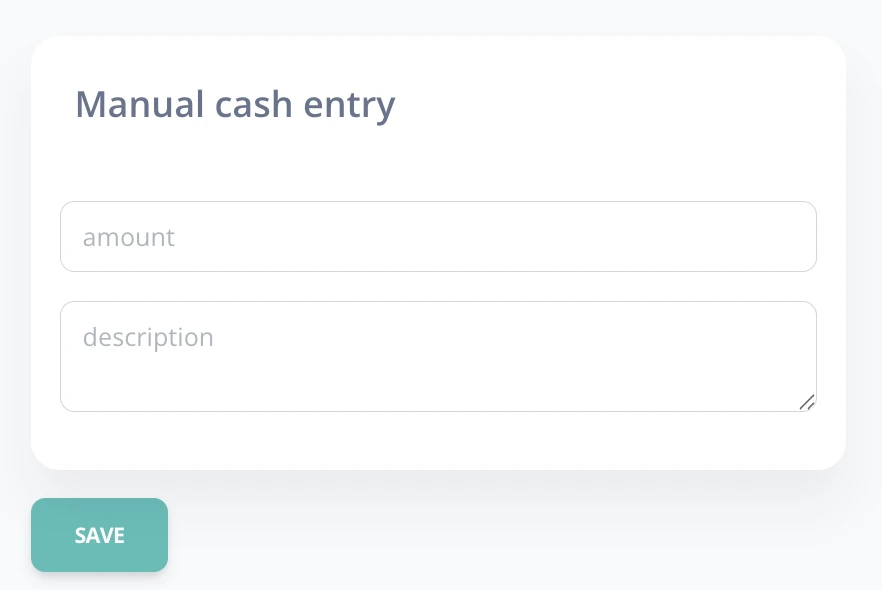
To register expenses, the cashier must enter the amount and a description.
D. 5. Withdrawals
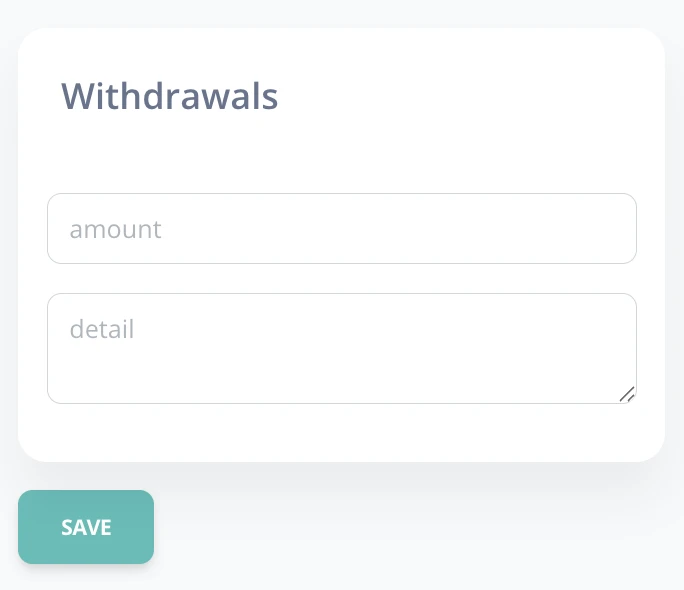
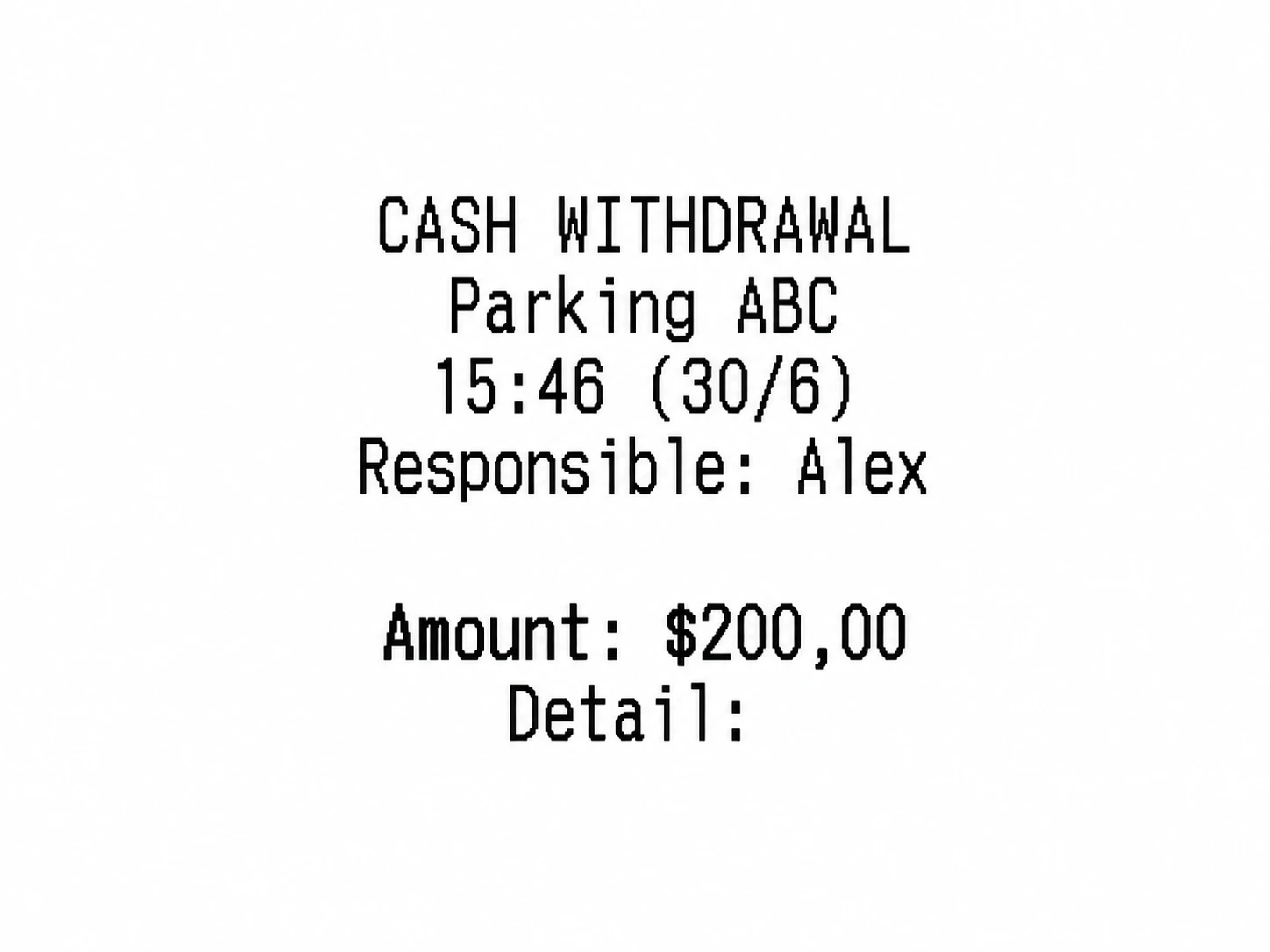
- When making a cash withdrawal, the amount, time, and withdrawal detail must be entered.
- An internal withdrawal receipt is printed.
D. 6. Other income
Allows recording additional money for the parking lot, either as a deposit or another concept.
D. 7. Monthly charges
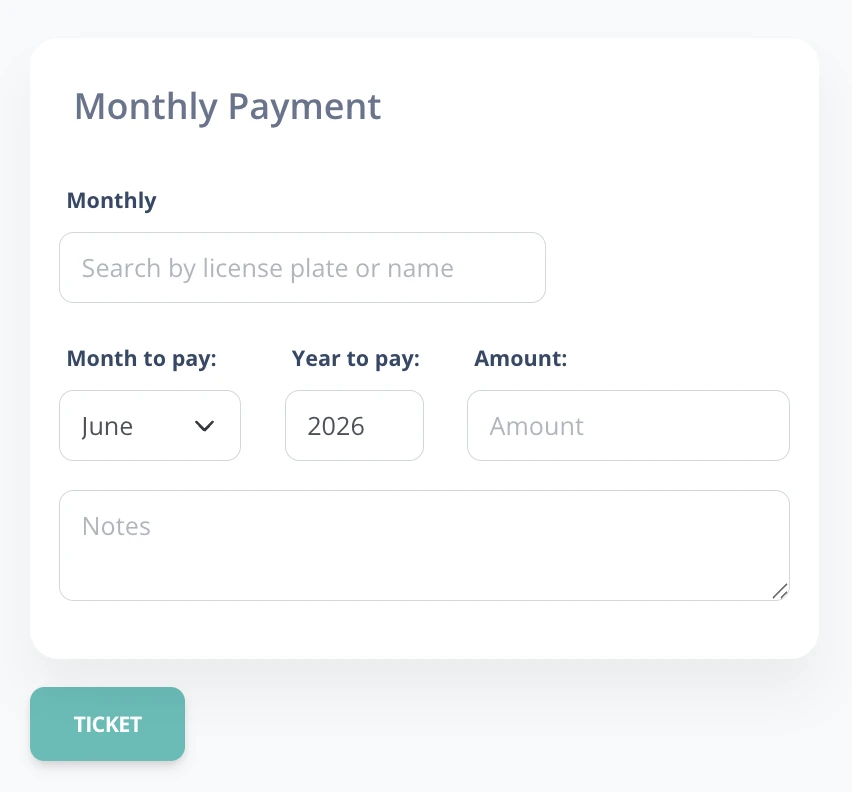
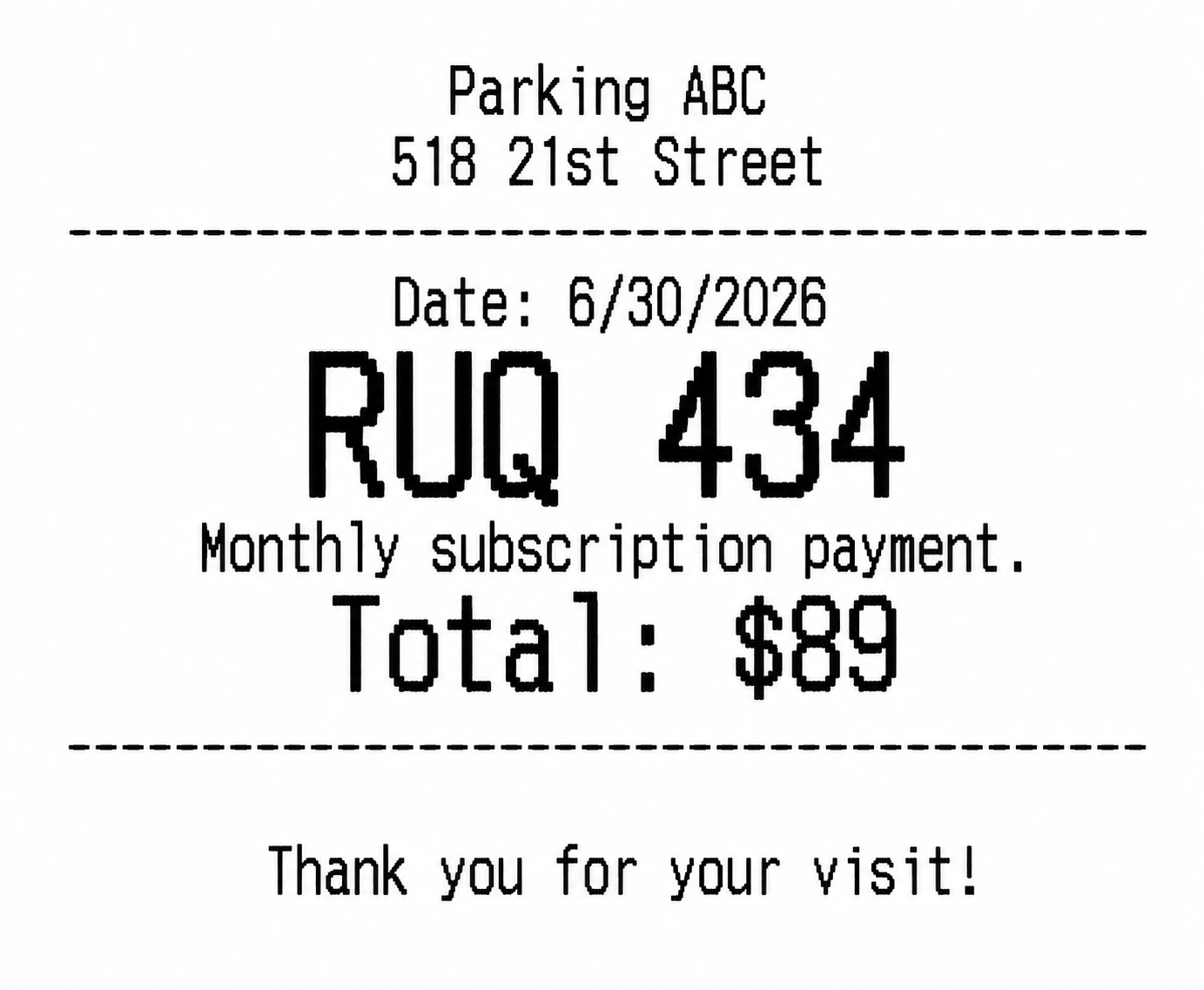
- For monthly customers, the cashier selects the customer's vehicle license plate and the amount to pay.
- The current period and amount due are selected automatically based on saved rates.
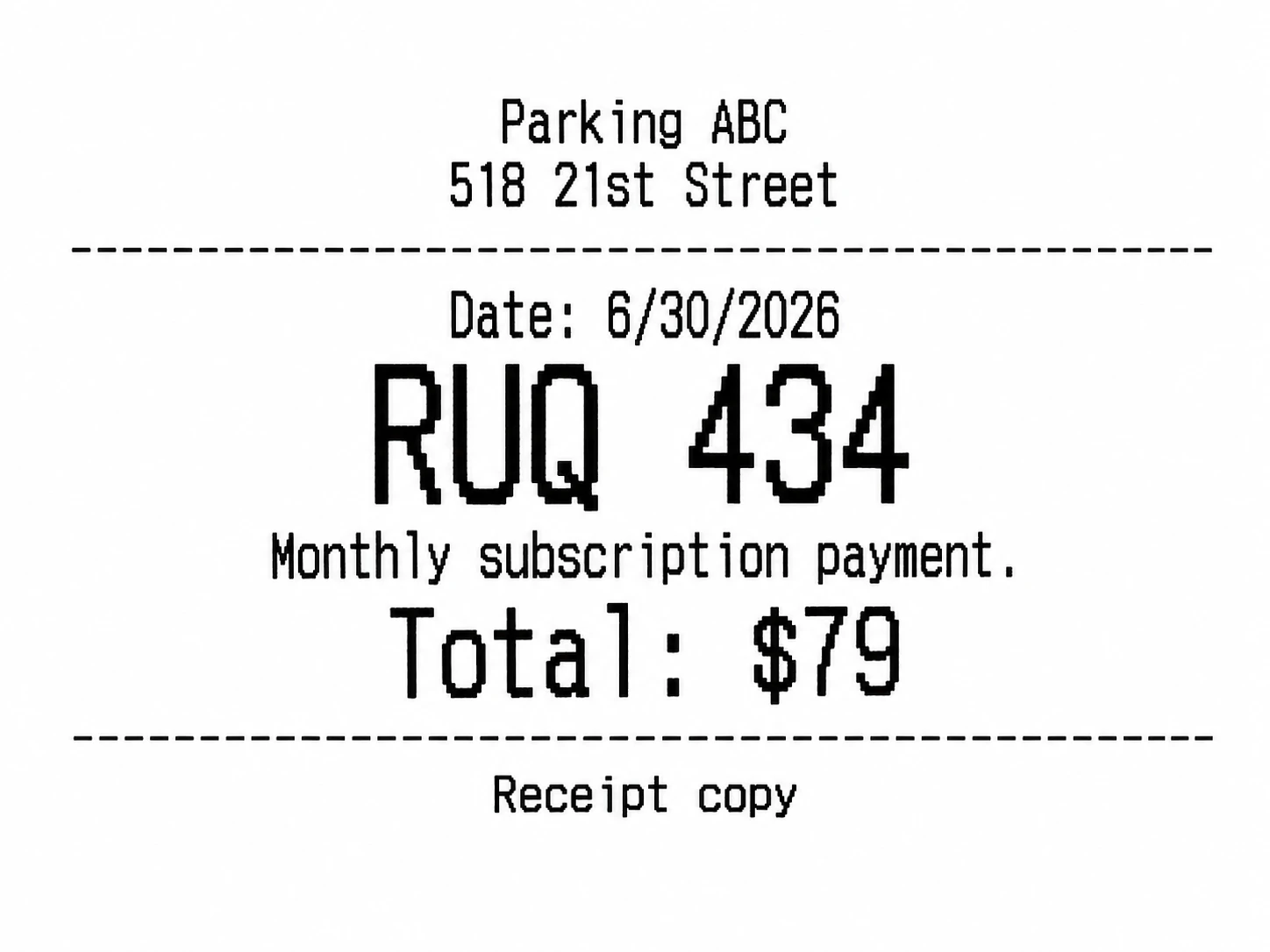
- A duplicate monthly payment receipt can optionally be printed if configured by the administrator.
D. 8. Transfers
Allows changing the payment method of an existing charge to bank transfer.
D. 9. Active vehicles
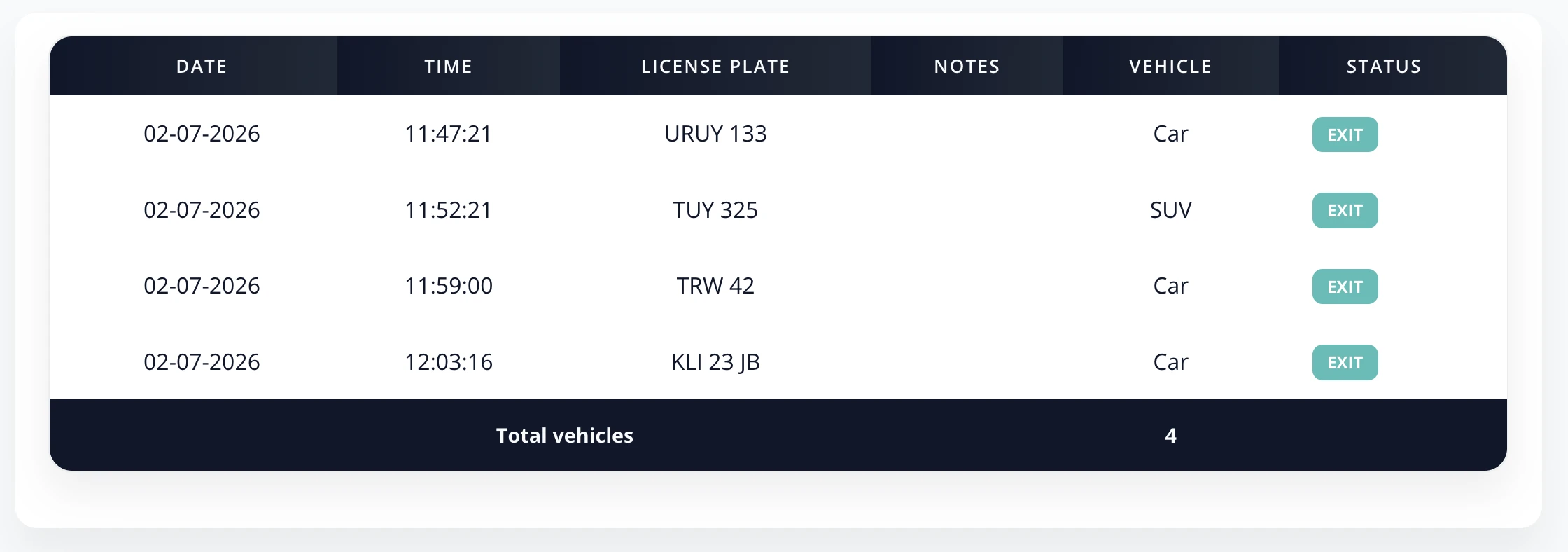
This view lets the cashier see the list of vehicles in the garage, including:
- Entry time
- License plate
- Vehicle type
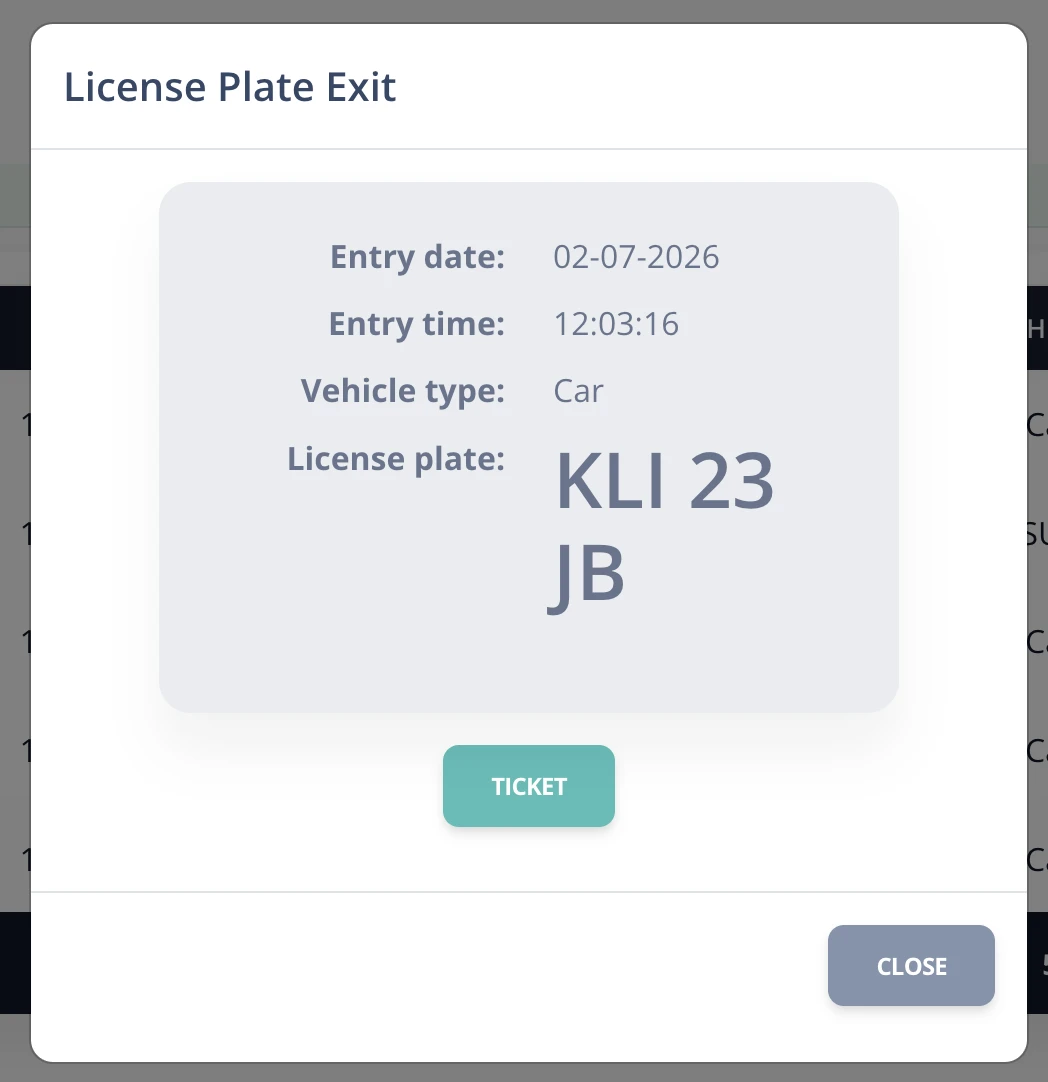
Vehicle exit function:
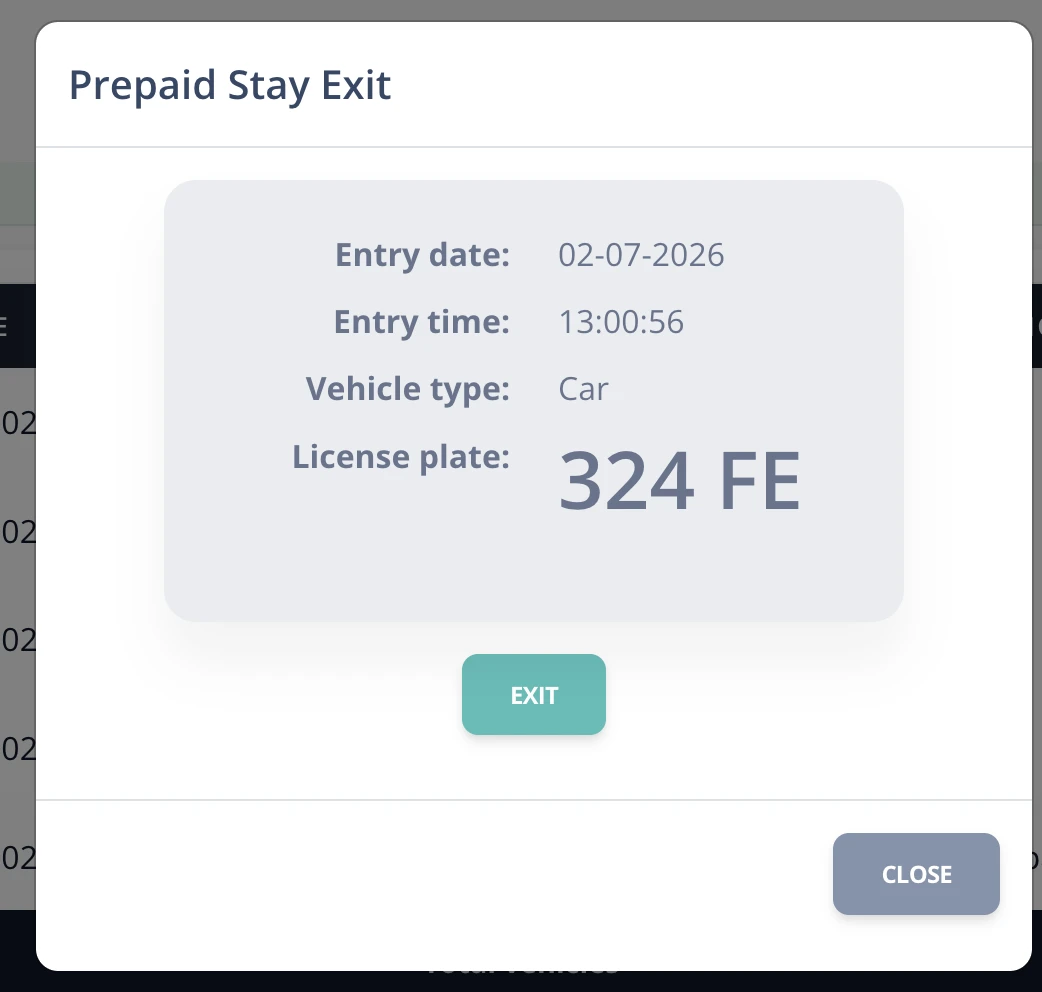
- When pressing the Exit button, a window opens with the vehicle information and entry time.
- If the customer has not paid yet, an exit ticket can be generated.
- If the customer paid in advance, only the exit option will be available.
D. 10. Validate QR payments
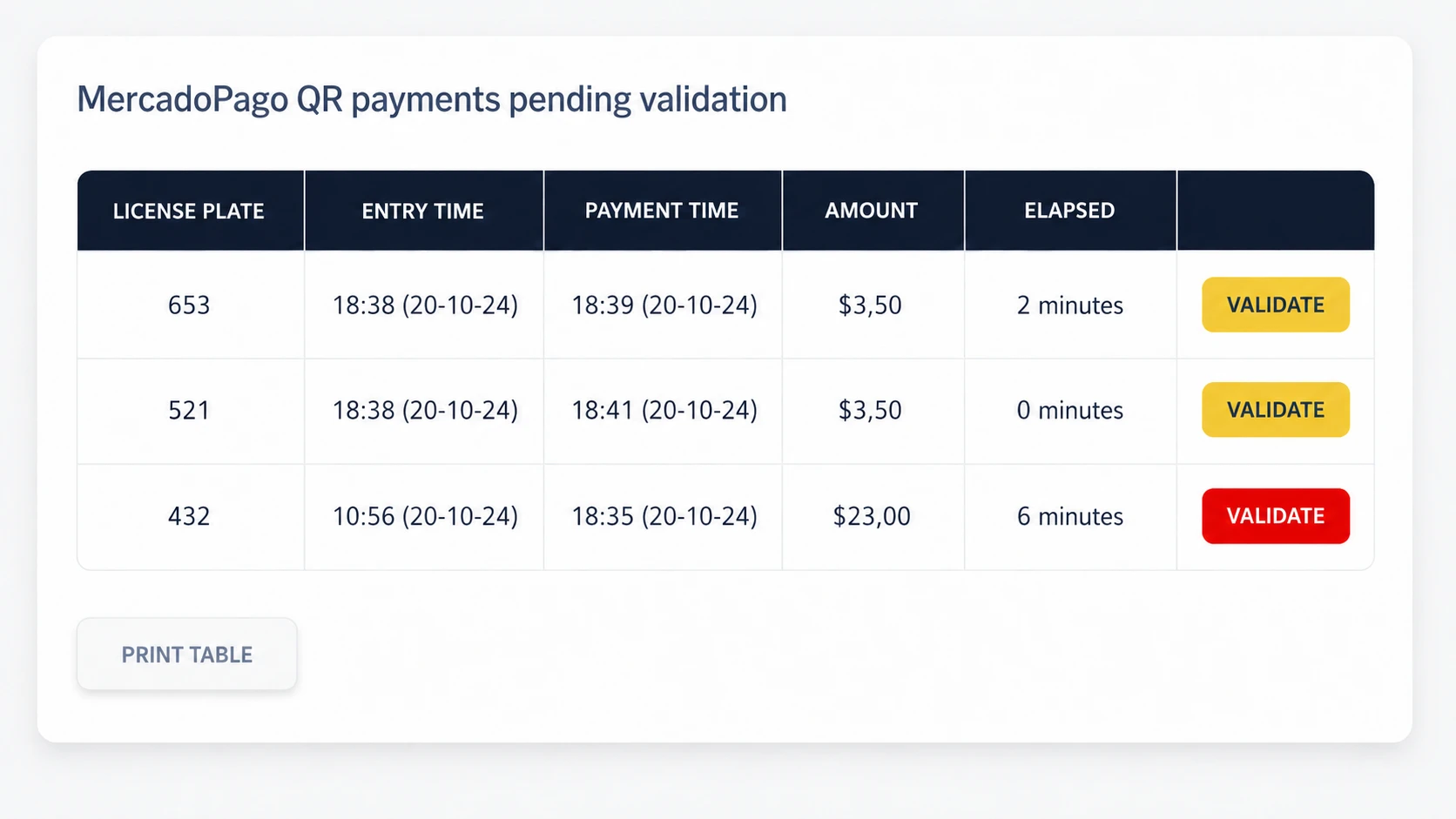
When Mercado Pago payments are enabled, paid tickets can optionally be validated within a time limit configured by the administrator. After that time, the customer must pay the difference for the elapsed time.
- Information shown on the validation screen:
- License plate
- Entry date and time
- Payment time
- Amount paid
- Elapsed time since payment
- Validation time limit:
- If the validation time expired, the Validate button is shown in red.
- In these cases, an additional ticket is printed so the customer can pay the time difference.
- Validation methods:
- Manual: Press the Validate button to confirm the payment.
- QR: Scan the ticket QR to validate automatically.
D. 11. Cash register summary
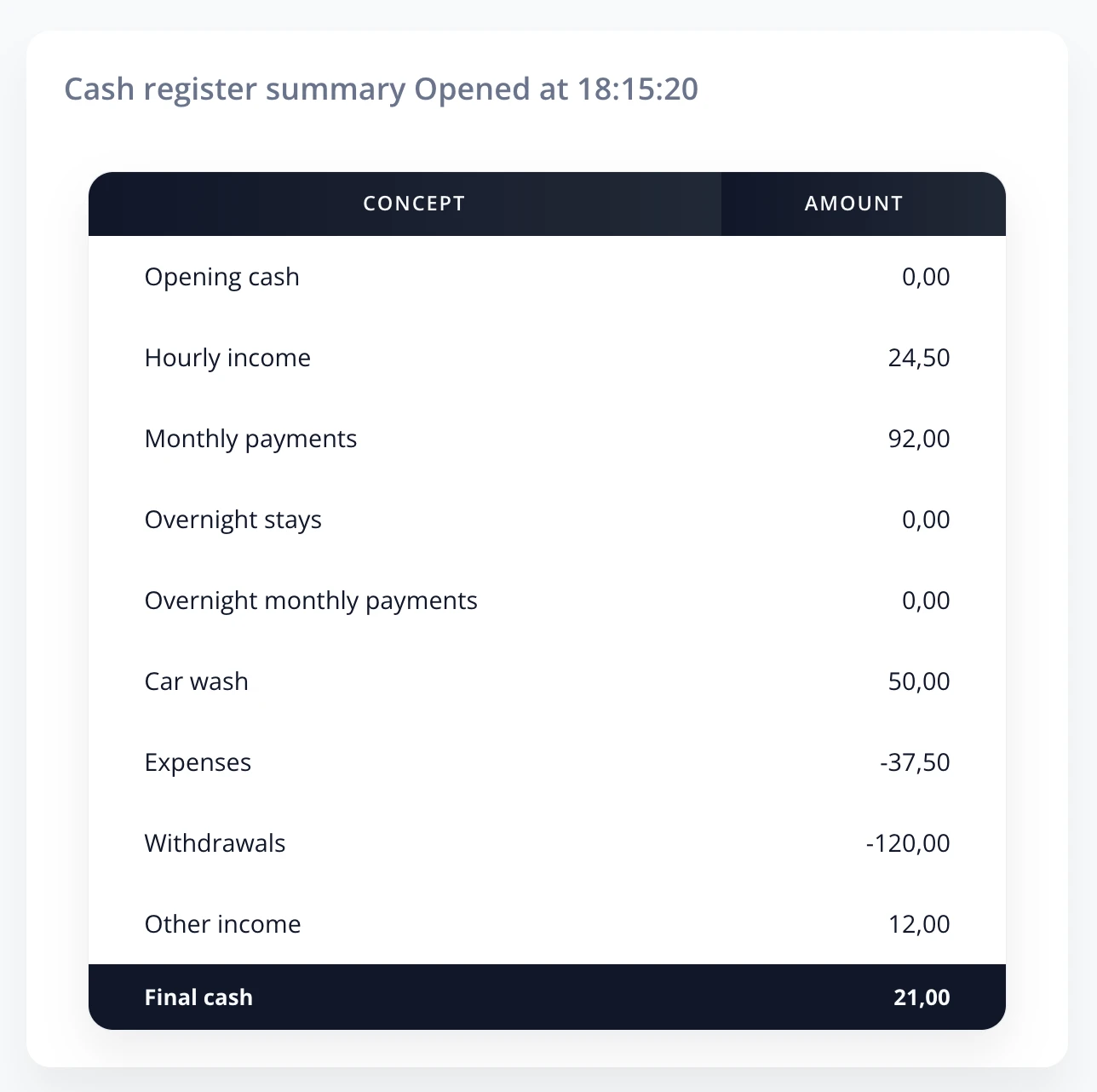
This report shows the cash register movement summary during a shift. It is similar to the administrator report.
Note: Each row lets you access movement details by clicking it.
Data included in the summary:
- Initial cash: Amount at the start of the shift.
- Hourly income: Total vehicles paid by hour.
- Monthly payments: Total collected from monthly plans.
- Car wash: Income from car wash services.
- Expenses: Sum of recorded expenses.
- Withdrawals: Amount physically withdrawn.
- Other income: Additional income sources.
- Transfers: Payments received by transfer.
- Mercado Pago: Total received through Mercado Pago.
- Final cash: Theoretical amount that should be in the register.
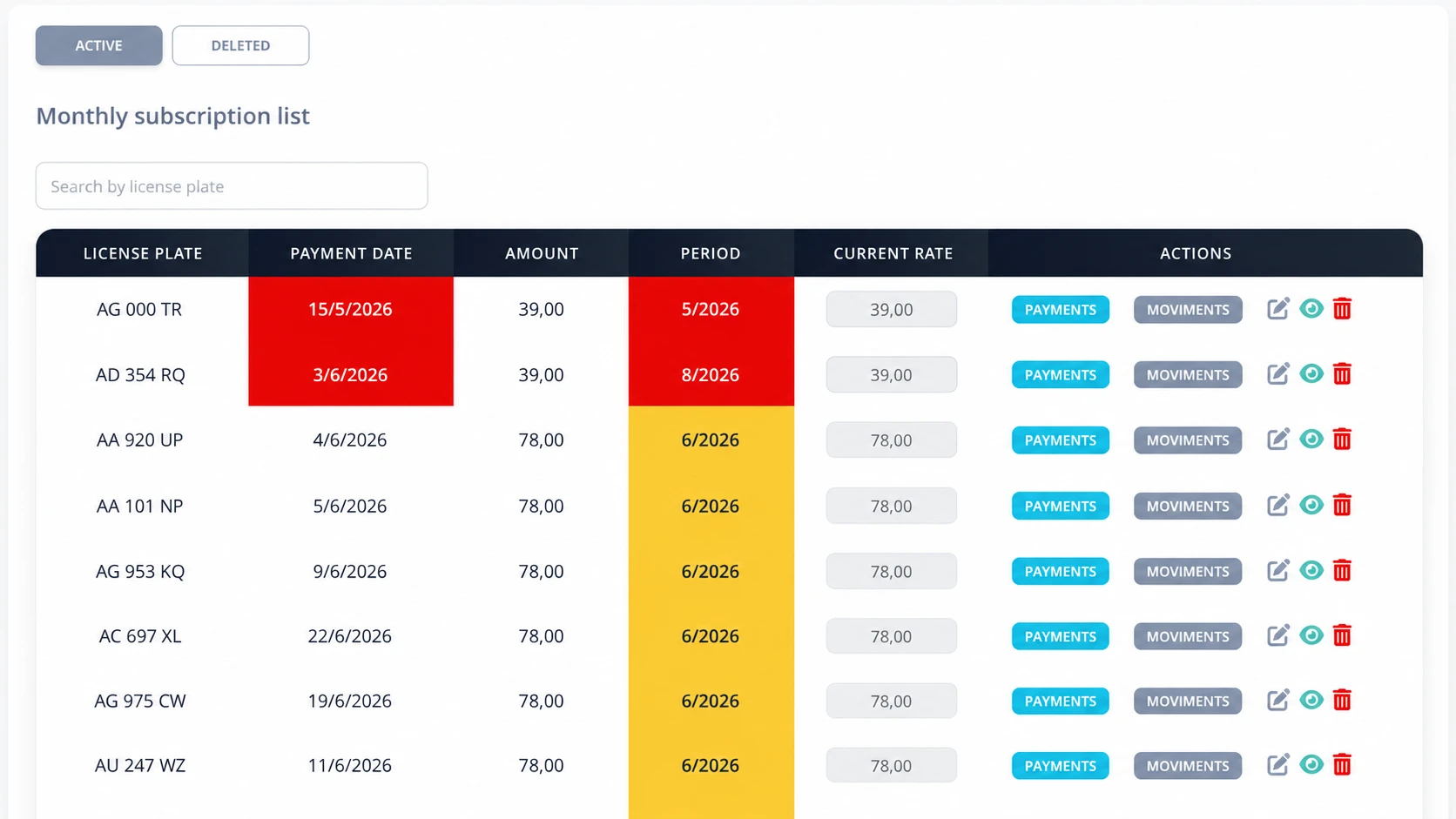
D. 12. Monthly customers
List of customers with active monthly plans:
- View customers: license plate, date and amount of the last payment, paid period, and current monthly rate.
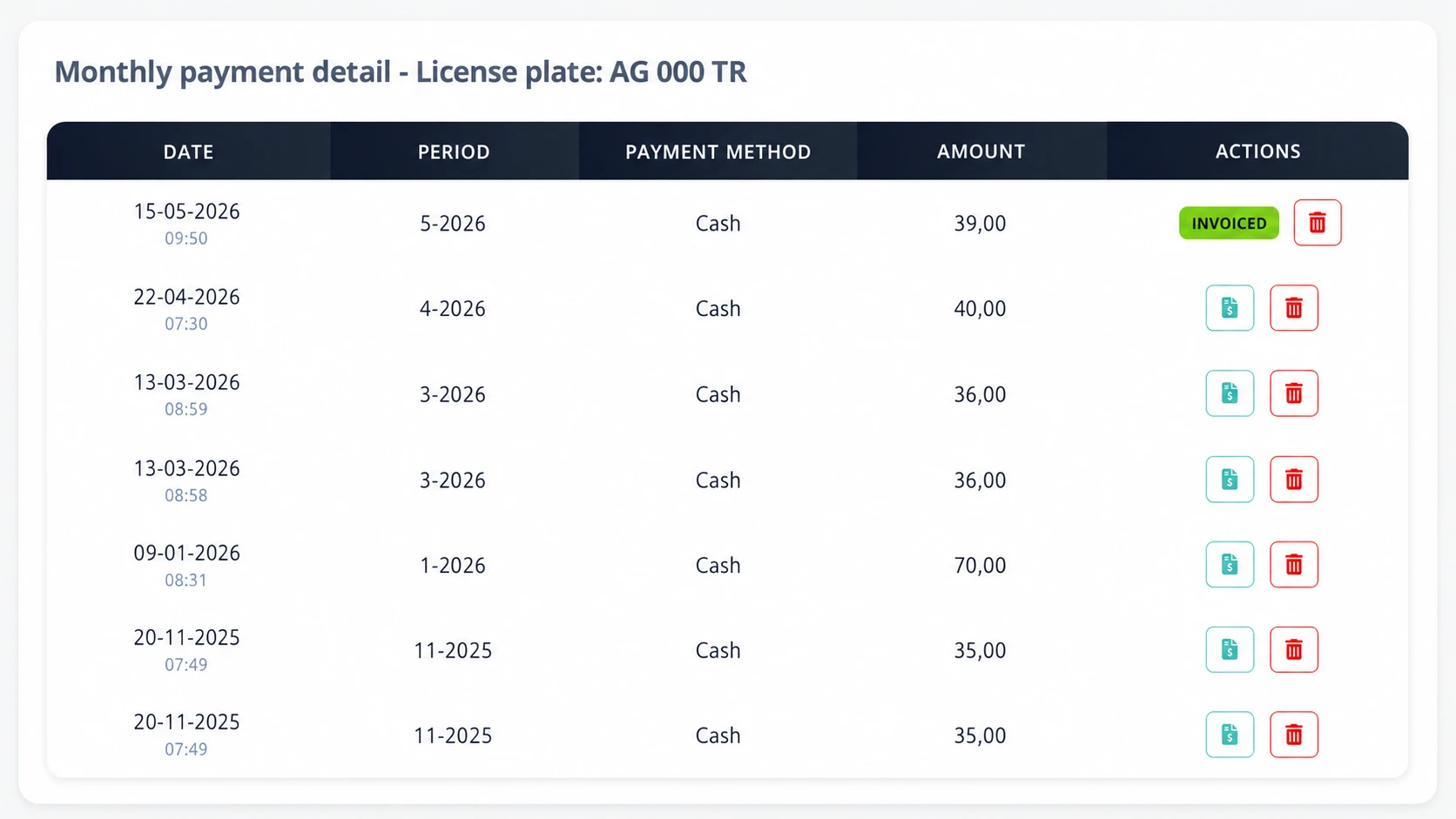
- Payment history: shows dates, amounts, and payment methods.
- Void payment: voids a specific payment for a monthly customer. That payment is offset with an expense movement.
- Modify the rate individually: rates can be set per license plate.
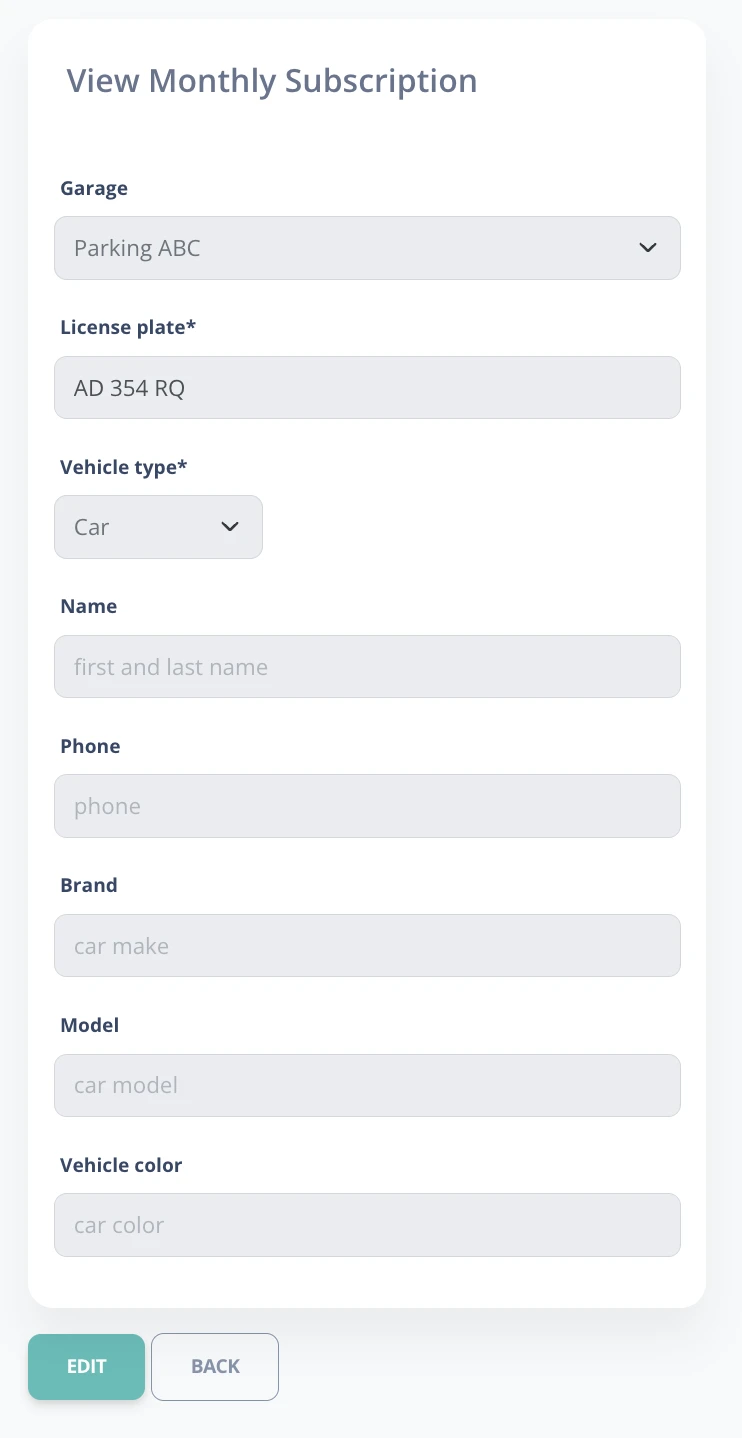
- View or delete customers: review or modify customer data.
- Visual alerts: red (overdue), yellow (overdue but still within the payment grace period), turquoise (overdue with partial payments).
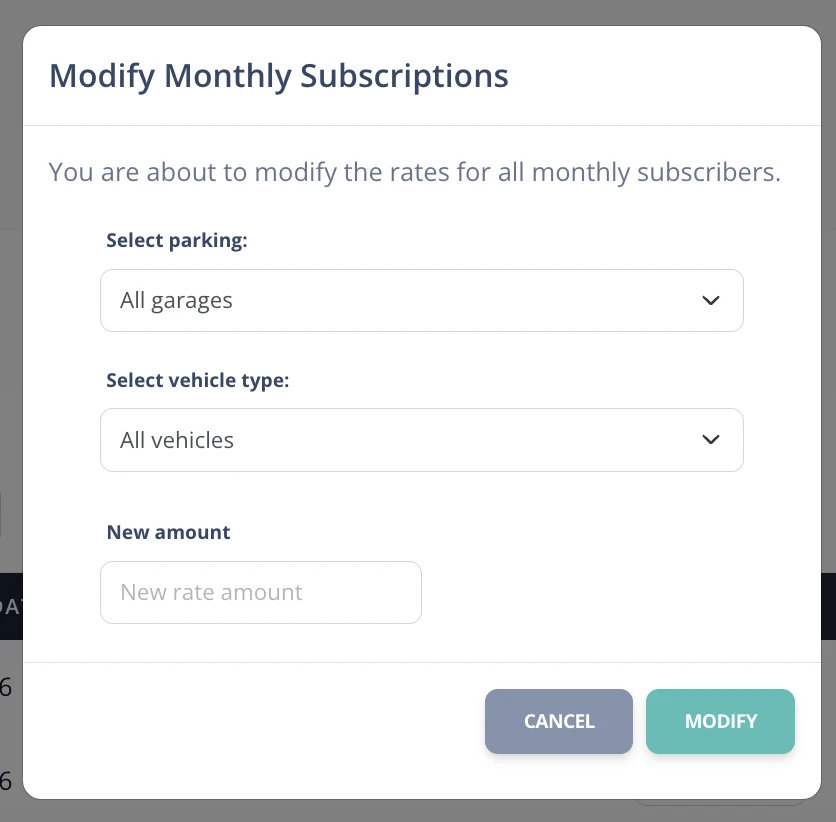
- Generic rate editing: all rates can be edited at once, selecting by vehicle type and parking location.